

Overview
The Webhook Trigger provides a unique HTTP endpoint that external systems can call to start your workflow. It’s the bridge between Langdock Workflows and any external service or application that can send HTTP requests.Best for: Real-time integrations, external system events, API-driven
workflows, and connecting services without native integrations.
When to Use Webhook Trigger
Perfect for:- Receiving events from external services (GitHub, Stripe, custom apps)
- Real-time data processing from external systems
- Building custom integrations
- Connecting services that support webhooks (including other workflows)
- API-driven workflows initiated by other systems
- User-facing data collection (use Form Trigger)
- Scheduled recurring tasks (use Scheduled Trigger)
- Native integration events (use Integration Trigger)
Configuration
Basic Setup
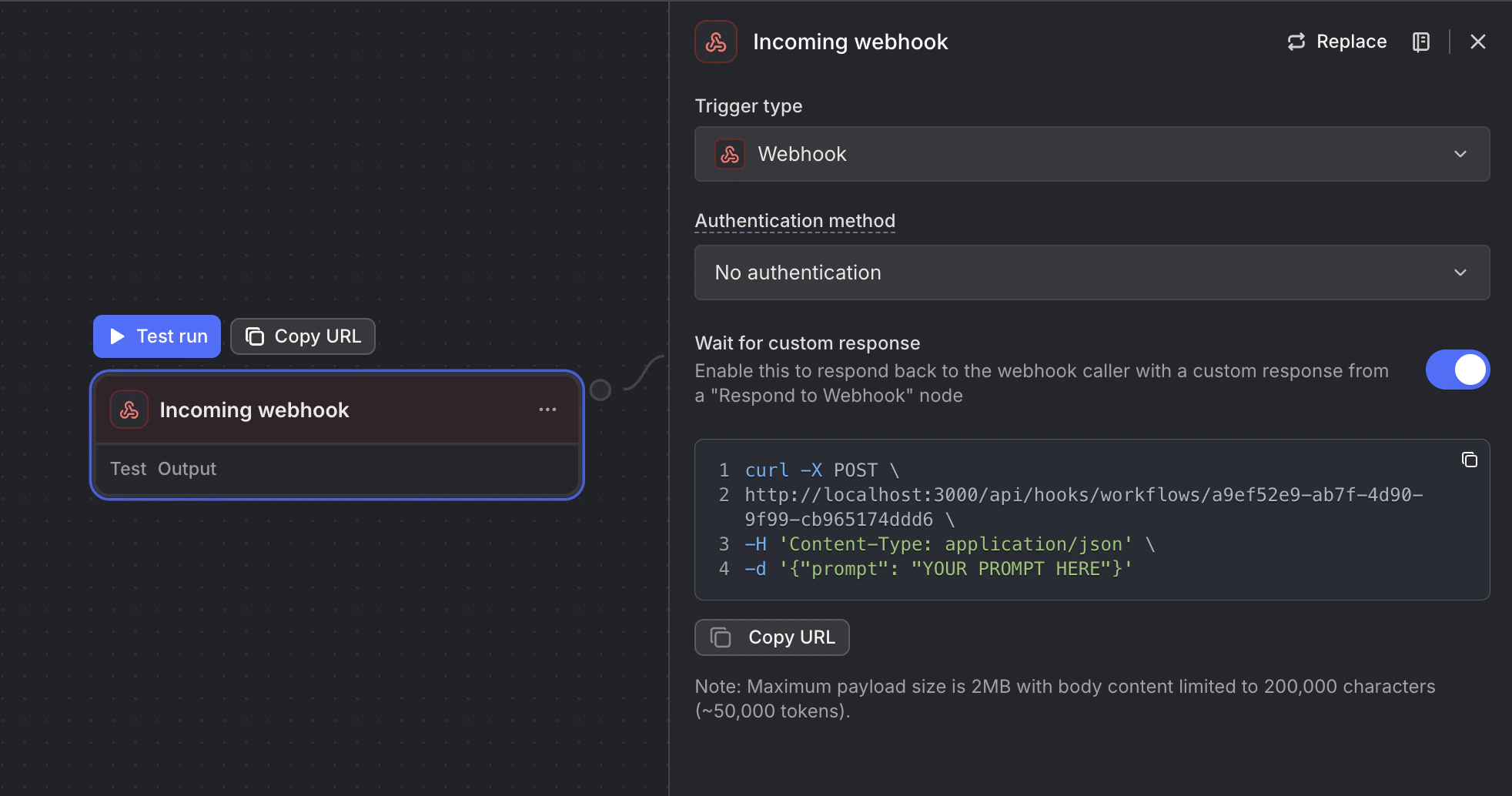
- Unique Webhook URL: A secure endpoint for receiving requests
- Webhook ID: Identifier for your webhook
Security Options
Use the Authentication method setting to control how your webhook is secured. When you select an auth method, a secret is auto-generated for you. The secret is preserved when you switch between methods, so you won’t accidentally lose your configured key.
A secret is required whenever an auth method is selected. Leaving the secret field empty while an auth method is active will show a validation warning.
Best Practice: Always use a secret for production webhooks to prevent unauthorized access. Header-based auth is preferred as it keeps secrets out of server logs and browser history.
Existing webhooks that use a query parameter secret continue to work without any changes. The authentication method field is optional — if unset, the old behavior is preserved automatically.
Advanced options
In Advanced options, turn on the matching option when you need signature headers or the original request body in the workflow. Both options are off by default.- Include signature headers: Adds the request content type and supported signature headers to the trigger output under
headers. Other incoming headers are omitted from the output. This includes signature headers from Stripe, GitHub, Slack, DocuSign, Shopify, Svix, and Standard Webhooks. - Preserve raw request body: Keeps the original unparsed body in the trigger output under
rawBody. Requests using this option are limited to 12 MB because both the parsed and raw body are retained.
How It Works
- External system sends HTTP POST request to webhook URL
- Webhook validates secret (if configured, via
X-Webhook-Secretheader or?secret=query parameter) - Request payload is parsed (JSON body and query parameters). Parsing still happens when Preserve raw request body is on. When Include signature headers is on, content type and supported signature headers are also available in the trigger output.
- Workflow is queued for execution
- Webhook responds immediately with 202 Accepted
- Workflow processes asynchronously in the background
headers and rawBody appear on the trigger output only when the matching switch is on for that webhook trigger.
Webhooks always process asynchronously. The webhook responds immediately with 202 Accepted while the workflow runs in the background.
Making Requests to Your Webhook
Basic Request
Sending Files
Send webhook files as JSON underfile for one file or files for up to 20 files. You can use these keys at the top level or inside nested objects.
Each file object requires fileName, mimeType, and one content field. Use base64 for binary files such as XLSX files or text for text files. Keep the full JSON request body below 25 MB, including Base64 encoded content. When Preserve raw request body is on, the request is limited to 12 MB.
Example Use Cases
GitHub Webhook Integration
- URL: Your webhook URL
- Events: Push, Pull Request
- Content type: application/json
x-hub-signature-256.
Stripe Payment Webhook
stripe-signature from trigger.output.headers and the original body from trigger.output.rawBody.
Custom Application Integration
Slack Command Integration
x-slack-signature and x-slack-request-timestamp.
Accessing Webhook Data
Webhook data is separated intobody (JSON payload) and query (URL parameters). When the matching Advanced options switch is on, the output also includes headers and/or rawBody.
Request Body
Access JSON payload fields:Files
Processed files replace the original file objects in the request body. Access files sent underfiles in trigger.output.body.files:
file, use {{trigger.output.body.file.path}}.
Query Parameters
Access URL query parameters:Headers
When Include signature headers is on, access the request content type and supported signature headers:content-type and stripe-signature. Names that are not supported do not appear.
Raw Body
When Preserve raw request body is on, access the original unparsed body as a string. GET requests setrawBody to an empty string.
Example
For a request like:Response Codes
Next Steps
Integration Trigger
Use native integration events
HTTP Request Node
Make requests to external APIs
Code Node
Validate and transform webhook data
Getting Started
Build your first workflow
FAQ
How do I trigger a workflow from an external service?
How do I trigger a workflow from an external service?
Use a Webhook Trigger when an external service should start a workflow by sending an HTTP request. Configure the external service to call the workflow’s webhook URL with the expected method, headers, and payload.
What should I check if a webhook trigger does not fire?
What should I check if a webhook trigger does not fire?
Check the webhook URL, request method, authentication or signing requirements, payload shape, and whether the external service actually sent the request. Also verify that the workflow is active and that any required fields are present in the incoming payload.