

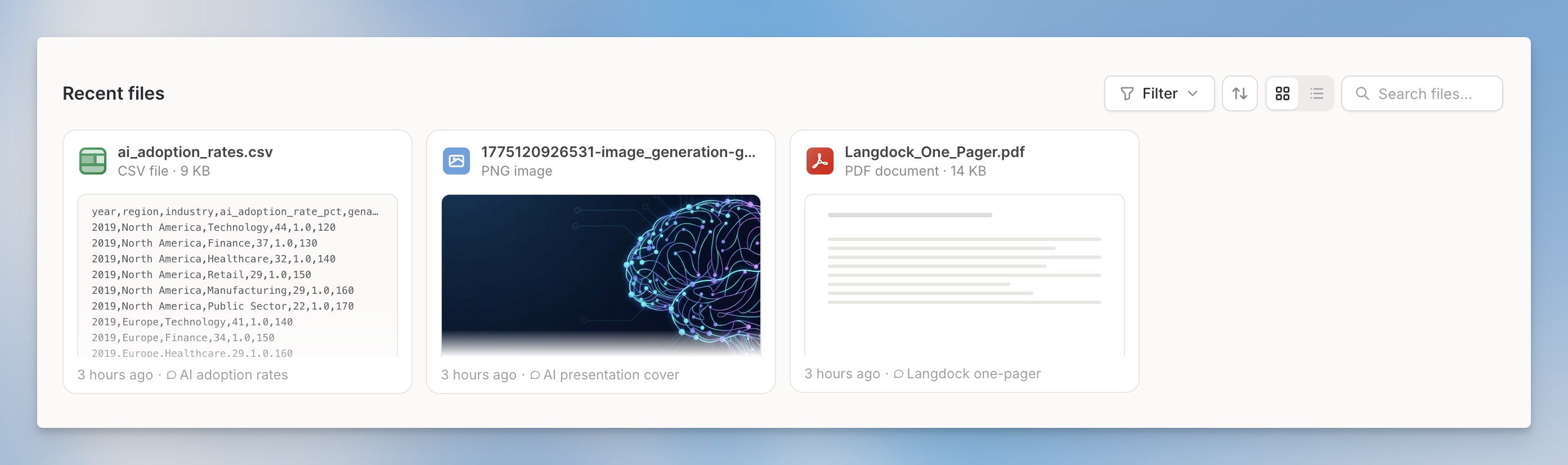
What appears in Recent Files
Recent Files shows files based on their source:
Files stored in Folders or Knowledge bases, files attached to Agents, Project files, files in synced integration folders, meeting recordings, workflow-only files, and files you upload in chat or in the Library are not shown here.
Recent Files follows your workspace’s chat data retention settings. When a chat is deleted, only files associated with that chat are removed from Recent Files.
Grid and list view
Toggle between grid view (thumbnails) and list view (rows with details) using the view switcher in the top-right corner of the Recent Files section. Your preference is saved automatically.Filtering and sorting
Use the filter controls to narrow down files:- File type: PDF, Document, Spreadsheet, Presentation, Image, or Code
- Created: Today, Yesterday, Last 7 days, or Last 30 days
- Source: Imported or Generated.
File actions
Each file has a set of actions available from its context menu or action bar:
When a file comes from a chat, click the chat name on the file card or list row to open the original chat.
File preview
Files can be previewed in these ways: Inline thumbnail. Visible directly on each file card in grid view. Preview dialog. Click a file to open a preview dialog without leaving the Library. Generated documents offer Word, PDF, and Markdown from the preview’s download menu. When Google Drive, OneDrive, or SharePoint is connected, the preview toolbar can open the file with Open in Google Drive, Open in OneDrive, or Open in SharePoint. Full-screen. Open the full-screen view for a larger preview. Multi-page files (documents, presentations) show a slide thumbnail strip for quick navigation. Presentations also support a presenter mode. Spreadsheet preview. Open spreadsheets with sheet tabs, zoom, column resizing, and formula inspection.Batch actions
Select multiple files to enable batch actions in one of these ways:- Shift + click to select a range of files
- In list view, hover over the list and click the checkbox in the header to select every file in the current view
- Select all to extend the selection to every visible file
- Start chat with files, up to 10 per chat
- Download all selected files
- Move to folder: moves all selected files into a Folder or Knowledge base at once
- Delete all selected files