

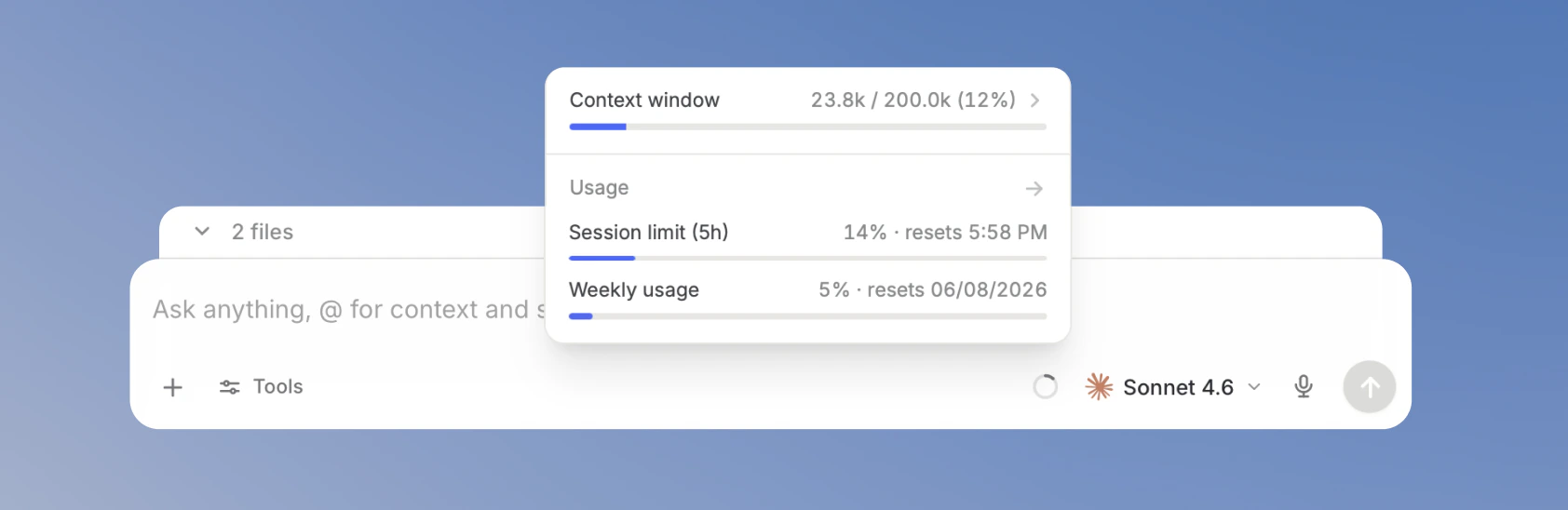
Context window indicator open in chat.
What fills the context window
Langdock builds the context window from the information the model needs to answer. Depending on the chat, it can include:- Your messages and the model’s responses
- Files, images, and other attachments in the chat, including files from Folders
- Relevant sections from Knowledge bases
- Relevant Memory
- Active Skills
- System instructions and tool instructions
- Tool calls and tool results from Web Search, file reading, integrations, and other tools
- Summaries of earlier chat history when a long conversation is summarized
Context window indicator
Check the indicator before long follow-ups or uploading large attachments. If the current chat already uses a lot of context, start a fresh chat with a short recap so the model has more room for your next task.1. Open the indicator
Find the circular indicator next to the model selector in the chat input. Click it to open the context window panel.
Opening the context window indicator from the chat input.
2. Check current context and usage
The top row gives you a quick check of the current chat. It shows used context, total context window size, and the percentage used for the selected model.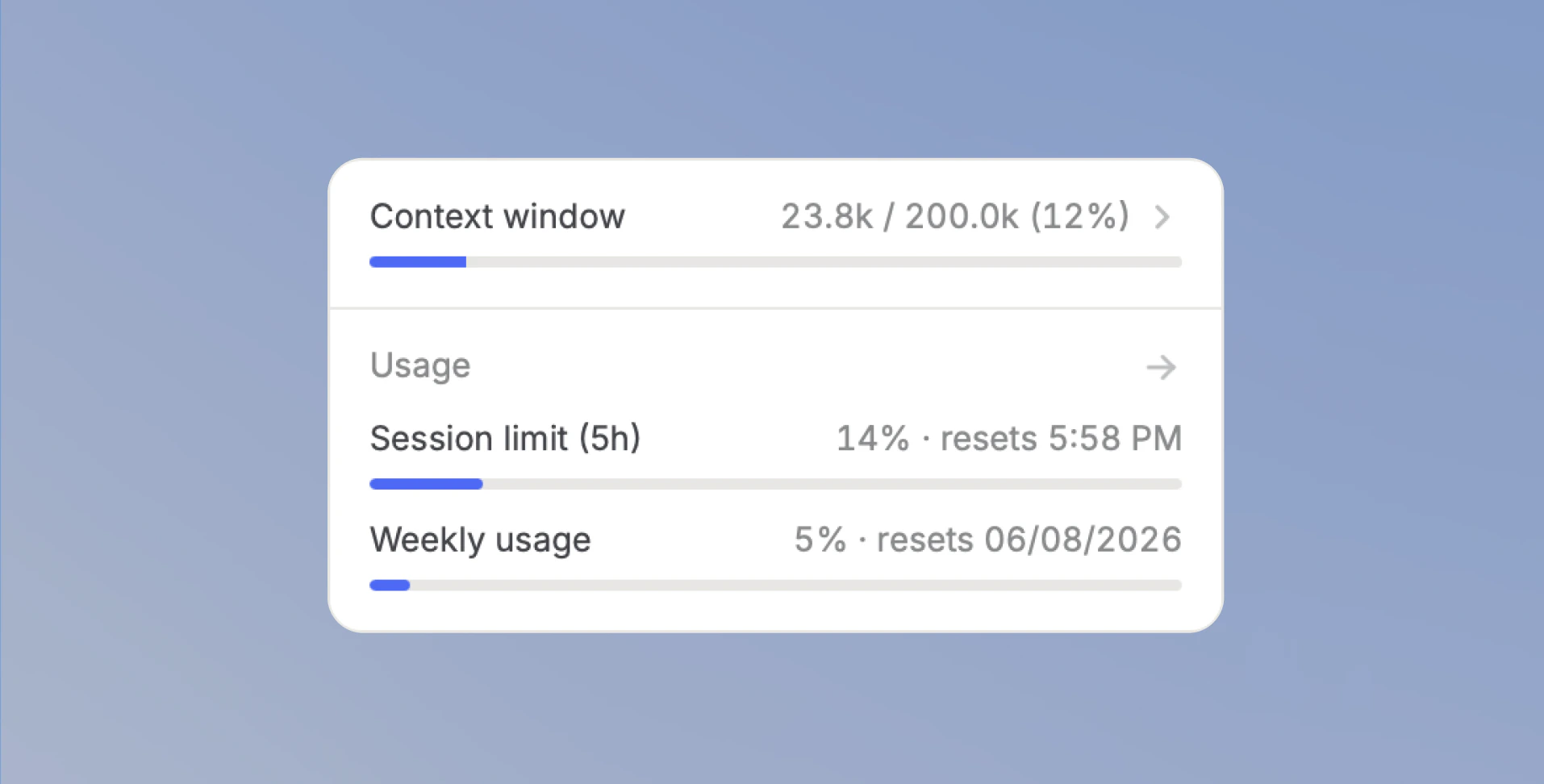
Collapsed context window indicator showing used context, free space, and usage limits.
Usage limit indicator
TheUsage section gives you a quick overview of your current usage limits:
Session limitshows your usage in the current 5-hour window and when it resets.Weekly usageshows your usage in the current weekly window and when it resets.Extra usageappears when extra usage applies to your Workspace.
3. Understand your context window
You can expand theContext window row to see a breakdown of how the context window is used and understand which categories take up the most space. Hover over Other tools to see which tools are grouped there.
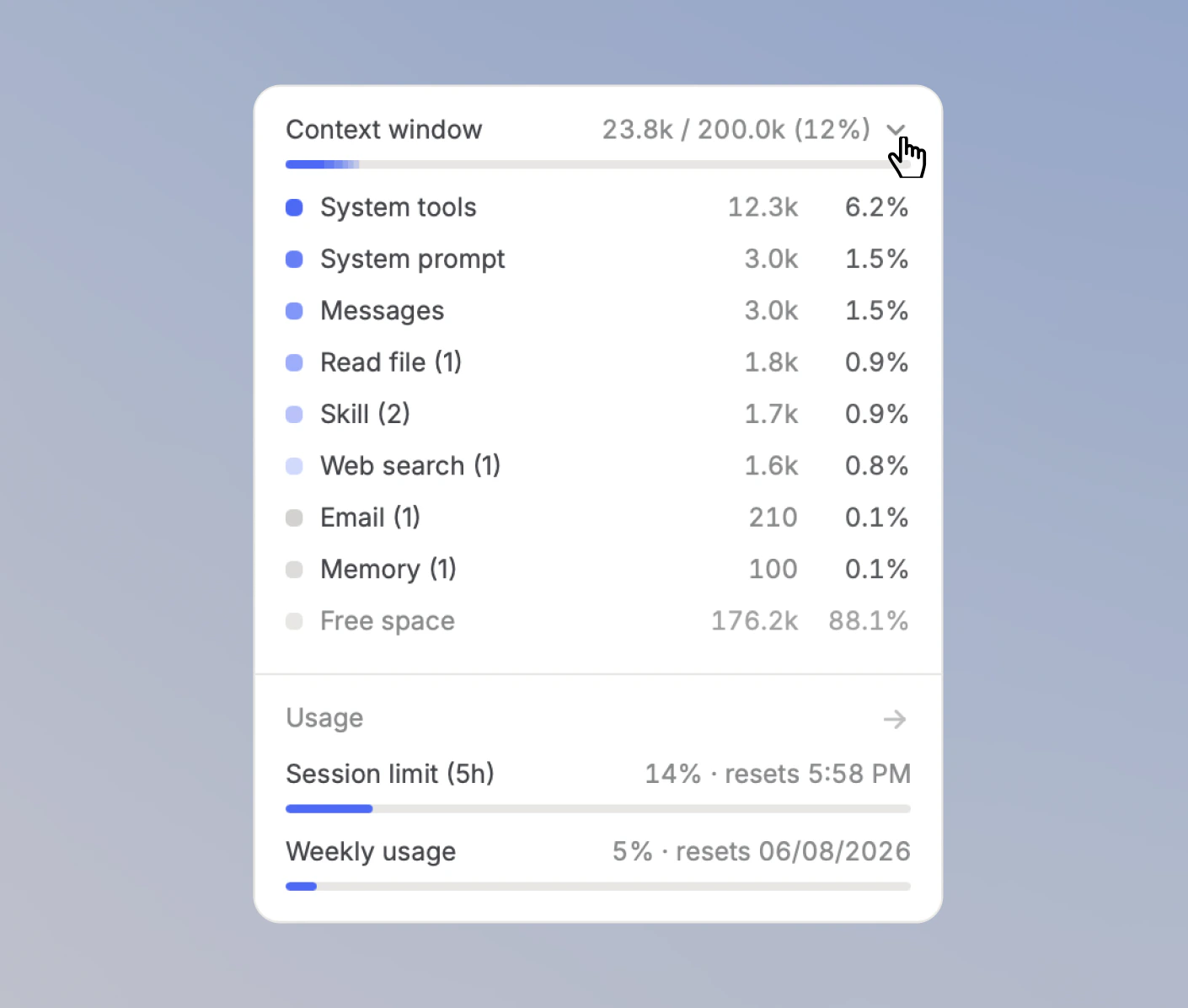
Expanded context window indicator with a breakdown by category.
Token values are estimates. Use them to understand relative context usage. They may differ from provider billing or exact model tokenization.
Conversation optimisation
Langdock can optimise long chats so you can keep working without starting over. Your full chat history stays visible, so you can always scroll back and read earlier messages. During conversation optimisation, Langdock summarizes older parts of the conversation for the model so the chat can continue within the context window. If an exact detail still matters, mention it again before you continue.Optimisation is based on context size, not message count. A short chat with large files, tool results, or retrieved knowledge can fill the context window faster than a long plain-text chat.
Managing your context window
Use the indicator to decide when to reduce context, summarize the important details, or start a fresh chat.- Start a new chat when you move to a new topic.
- Remove unnecessary files or images before sending the next message.
- Reference specific sections instead of attaching entire documents when possible.
- Use consistent terms so the model can connect related parts of the conversation.
- Refer to important details directly, such as “use the pricing section we discussed earlier”.
- Add a short recap before continuing a long chat.
- Choose a model with a larger context window when the task requires long documents or extended analysis.
FAQ
Does conversation optimisation delete my messages?
Does conversation optimisation delete my messages?
No. Your messages stay visible in the chat. The model may receive a summary of older messages instead of the full earlier conversation.
Why did the model forget something we discussed earlier?
Why did the model forget something we discussed earlier?
The chat may have exceeded what fits in the model’s context window. Older details can become less reliable after a long conversation is summarized, especially in chats with files, tools, Agents, or large amounts of retrieved knowledge.
Why can this happen after only a few messages?
Why can this happen after only a few messages?
Context is based on tokens, not message count. A few large prompts, attached files, retrieved knowledge, system instructions, or tool results can fill the context window quickly. Break larger tasks into smaller chats or phases, and bring only the files and instructions needed for the next step.
When should I use files or Knowledge bases instead of chat history?
When should I use files or Knowledge bases instead of chat history?
Use files when information needs to stay durable or quoted exactly later. Use Knowledge bases when information needs to stay searchable across many documents. Chat history is useful for conversation flow, but it is not a reliable long-term knowledge store after older context is summarized.
What does conversation optimization mean?
What does conversation optimization mean?
Conversation optimization means older parts of a long conversation may be compacted so the chat can continue within the model’s context window. The visible chat history is not deleted, but the model may no longer receive every older message word for word.
Why did the assistant forget something from earlier in the chat?
Why did the assistant forget something from earlier in the chat?
The conversation may have exceeded what the model can consider at once. Older details can become summarized, omitted, or less reliable, especially in long chats or chats with large files, retrieved knowledge, tools, or agent actions.
How is the context window different from output and usage limits?
How is the context window different from output and usage limits?
The context window controls how much information the model can read for one request. Output limits control how much the model can write in one response. Usage limits control how much model capacity a user or workspace can consume.