

Overview
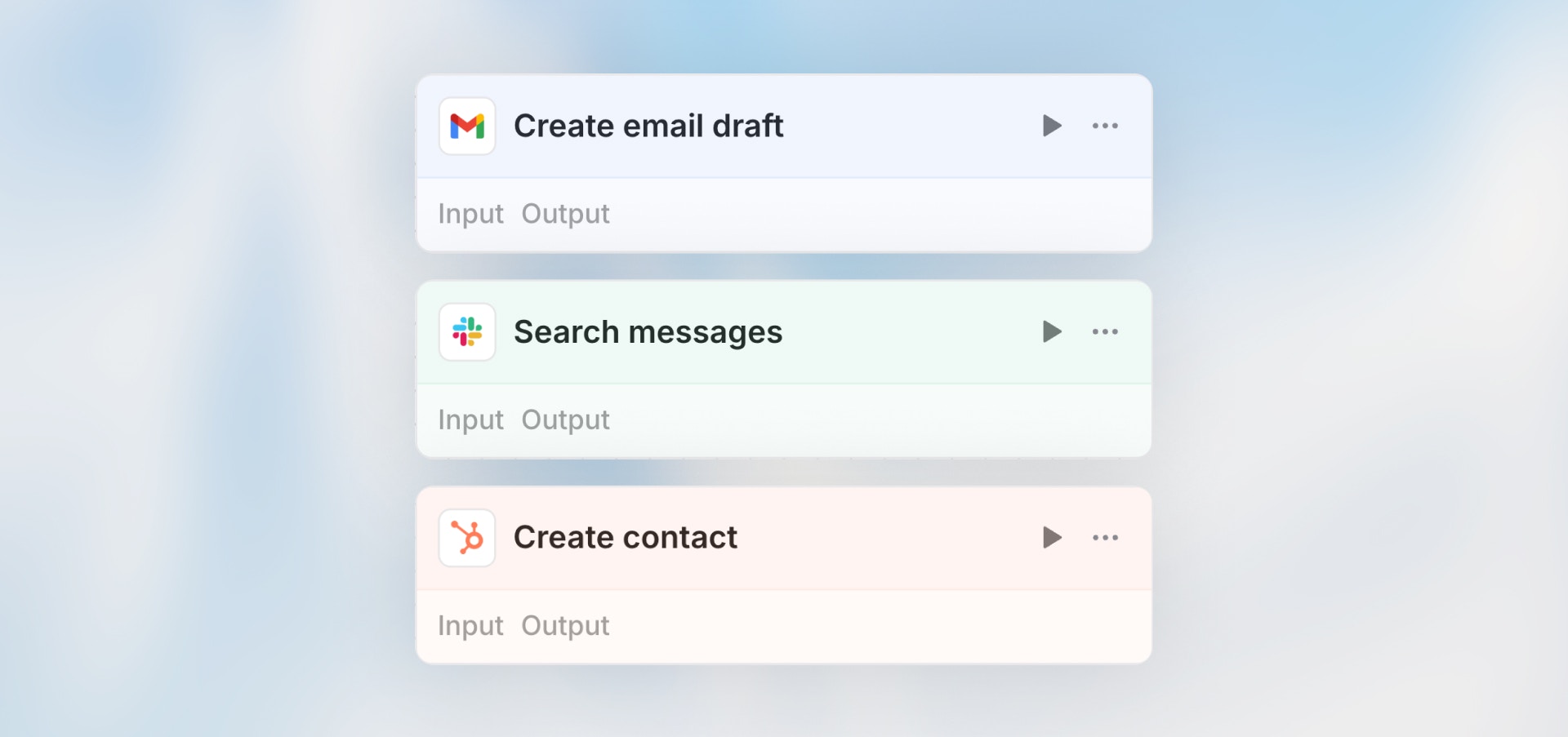
The Action node executes operations in your connected integrations - send Slack messages, create CRM records, add rows to spreadsheets, update project tasks, and more.Best for: Creating/updating records, sending messages, triggering actions
in connected apps, and integrating with external services.
Configuration
- Select Integration: Choose from connected apps (Slack, Google Sheets, Notion, etc.)
- Choose Action: Select a specific action (Send message, Create record, etc.). The available fields depend on your selection.
- Select Connection: If you have multiple connections, choose which one to use
- Map Fields: Provide data from previous nodes using variables. Hover a field label to view its description when guidance is available.
- Configure Settings: Action-specific options
Field Configuration Modes
Each field in an action can be configured independently with one of these modes:
Manual Mode Example:
Connection Selection
If you have multiple connections to the same integration (e.g., multiple Slack workspaces or Gmail accounts), select which connection this action should use. This is configured at the action level. If the selected connection is expired or missing scopes required by this action, the connection selector shows a warning with a link to reauthorize.Requires Confirmation
When enabled, the workflow will pause before executing this action and request user confirmation. This is useful for:- Actions with significant external impact (sending emails, creating records)
- Review steps before data is pushed to external systems
- Compliance workflows requiring human approval
Error Handling
Configure how errors are handled:Common Actions
Slack- Send message to channel
- Send direct message
- Create channel
- Add reaction
- Add row
- Update row
- Delete row
- Update cell
- Send email
- Create draft
- Add label
- Create page
- Update database record
- Create/update contact
- Create/update deal
- Add activity log
Example
Next Steps
Integration Trigger
Trigger workflows from integration events
Getting Started
Build your first workflow