

Overview
Use the Code node to process workflow data directly with custom JavaScript or Python code. Choose it when standard nodes are not enough, for example for calculations, formatting, validation, file processing, or custom business logic.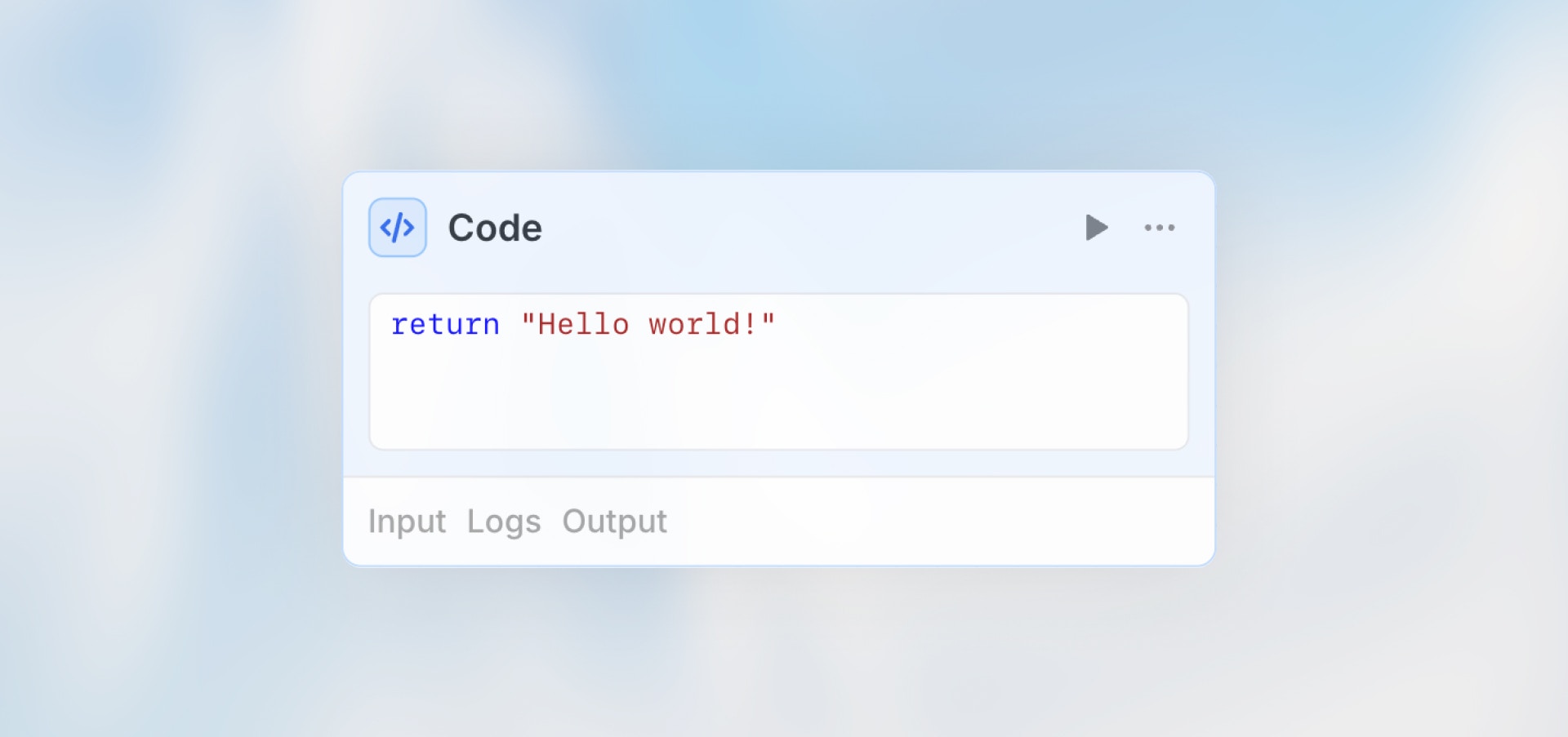
When to Use Code Node
Code nodes are perfect for:- Data transformations and formatting
- Mathematical calculations
- Custom business logic
- JSON parsing and manipulation
- Data validation and cleaning
- Date/time operations
- File processing with JavaScript and Python
- AI analysis (use Agent node)
- External API calls from Python (use HTTP Request node)
- Simple conditions (use Condition node)
- Long-running or interactive analysis (use Data Analysis)
Configuration
Language: Choose whether to write your code in JavaScript or Python. Code Editor: Write your transformation logic in the selected language in the code editor that opens when you select the Code node. Access Previous Nodes: Outputs from previous nodes are available as variables in the Code node. The available variable names are shown at the top of the code editor. Only upstream nodes whose slugs appear in your code are loaded. Reading fromdata, or looking up outputs dynamically instead of by slug, loads every upstream output. To use the Code node output later, see Accessing Code Output.
Examples
Calculate Statistics
Validate and Clean Data
Transform and Filter Arrays
Date Operations
JSON Processing
Aggregate and Summarize
Create a File with JavaScript
JavaScript can produce workflow files by returning afiles array. Each entry must include fileName, mimeType, and either text (for text/CSV/JSON content) or base64 (for binary content). The runtime uploads the files and attaches them to the node output under _files.
JavaScript
Read Files from Previous Nodes
Files passed from previous nodes, such as form uploads or action outputs, are available in the Python working directory. Each file object carries apath you can pass directly to open() and the original filename under _metadata.name.
Python
Create a File with Python
Files created by Python in the working directory are attached to the node output under_files.
Python
Accessing Code Output
Use the Code node name to access returned values from JavaScript or Python in subsequent nodes:_files:
Language Capabilities
Code node capabilities depend on the selected language.JavaScript
JavaScript runs in a secure sandbox environment with built-in utility functions:ld.request(): Make HTTP requestsld.log(): Output debugging information- Data conversions: CSV, Parquet, Arrow format conversions
- File creation: Return a
filesarray to expose generated files under_files - Standard JavaScript: JSON, Date, Math, Array, Object methods
Complete Utilities Reference
View all available sandbox utilities including data conversions, SQL validation, cryptography, and more.
Python
Python runs in a sandboxed environment without internet access.- Use top-level
returnto set the node output - Use
print()to write logs - Use preinstalled data and document libraries such as pandas, numpy, openpyxl, and pypdf
- Access upstream outputs as variables when their slugs appear in your code and are valid Python identifiers
- Read files from previous nodes by passing
file["path"]toopen() - Save files in the working directory to expose them under
_files - Run without internet access
ld.* utilities are not available in Python.
Best Practices
Return Structured Objects
Return Structured Objects
Return data as objects for easy access in later nodes. This makes it simple to reference specific values in subsequent nodes using dot notation.
Handle Missing Data
Handle Missing Data
Use
||, optional chaining (?.), or Python .get() to provide default values and prevent errors when data is undefined or null.Use Error Handling
Use Error Handling
Wrap risky operations in
try/catch for JavaScript or try/except for Python. This helps prevent workflow failures and provides meaningful error messages.Keep It Simple
Keep It Simple
Complex logic might be better in an Agent node. Use code nodes for straightforward transformations and calculations, not for tasks requiring intelligence or context understanding.
Keep Inputs Small
Keep Inputs Small
Code nodes fail when their loaded upstream outputs exceed 5 MiB. Reference only the slugs you need because
data and other dynamic output lookups load every upstream output.Add Comments
Add Comments
Document what your code does for future reference. Clear comments help you and your team understand the logic when revisiting the workflow later.
Limits
Input Size
Each Code node has a 5 MiB limit on the combined input it receives from previous nodes. Before your code runs, Langdock measures the size of the upstream outputs your code references by slug. If they exceed 5 MiB, the node fails with an error and your code is never executed. Reading fromdata, or looking up outputs dynamically instead of by slug, loads every upstream output, so the full combined size is measured against the limit.
Common causes:
- A Loop node that collects outputs from many iterations into a single array.
- A previous node that returns a very large API response, file content, or dataset.
- Deeply nested objects that cannot be safely measured.
- Reduce the size of the upstream node output by filtering, summarizing, or selecting only the fields you need.
- Process fewer items per iteration in any preceding Loop node.
- Disable output collection on the preceding Loop node when you do not need to read its aggregated results.
Result Size
Every workflow node output is capped at 25 MB, including Code nodes. If the result your code returns exceeds 25 MB, the node fails withNode output exceeded the maximum size of 25 MB. Reduce the amount of data the node returns (e.g. filter or paginate results). and the oversized result is not stored. This applies to JavaScript and Python. Files you return in a files array or create in the Python working directory are uploaded before the output is measured, so their content does not count toward the limit.
JavaScript results also pass through the code execution service, which caps its complete response at 150 MB, including files returned inline. For details, see Sandbox Utility Functions.
If you hit either limit, return only the fields later nodes need, and filter or paginate large datasets before returning them.
Next Steps
Agent
Use AI for intelligent processing
HTTP Request
Fetch external data
Data Analysis
Analyze data with an Agent