

Understanding Permission Types
Microsoft uses two types of OAuth permissions:Langdock uses delegated permissions. When you connect a Microsoft integration, Langdock acts on your behalf with your existing access rights—it cannot access data you don’t already have access to.
Granting Admin Consent
A Microsoft admin must grant tenant-wide consent before users can connect Microsoft integrations.Prerequisite: A user or admin must have attempted to connect an integration at least once. This triggers the creation of the Langdock Service Principal in your tenant.
1
Open Microsoft Entra
Sign in to the Microsoft Entra admin center as a Cloud Application Administrator or Global Administrator.
2
Find Langdock
Go to Identity → Applications → Enterprise applications → All applications and select Langdock.
3
Grant Consent
Under Security, select Permissions, then click Grant admin consent for [Your Organization].
4
Verify in Langdock
In Langdock, go to Workspace settings → Integrations, select a Microsoft integration such as Outlook Calendar, and connect your account to confirm it works.
Reviewing Granted Permissions
After granting consent, you can review all permissions in Microsoft Entra:- Go to Identity → Applications → Enterprise applications → Langdock
- Under Security, click Permissions
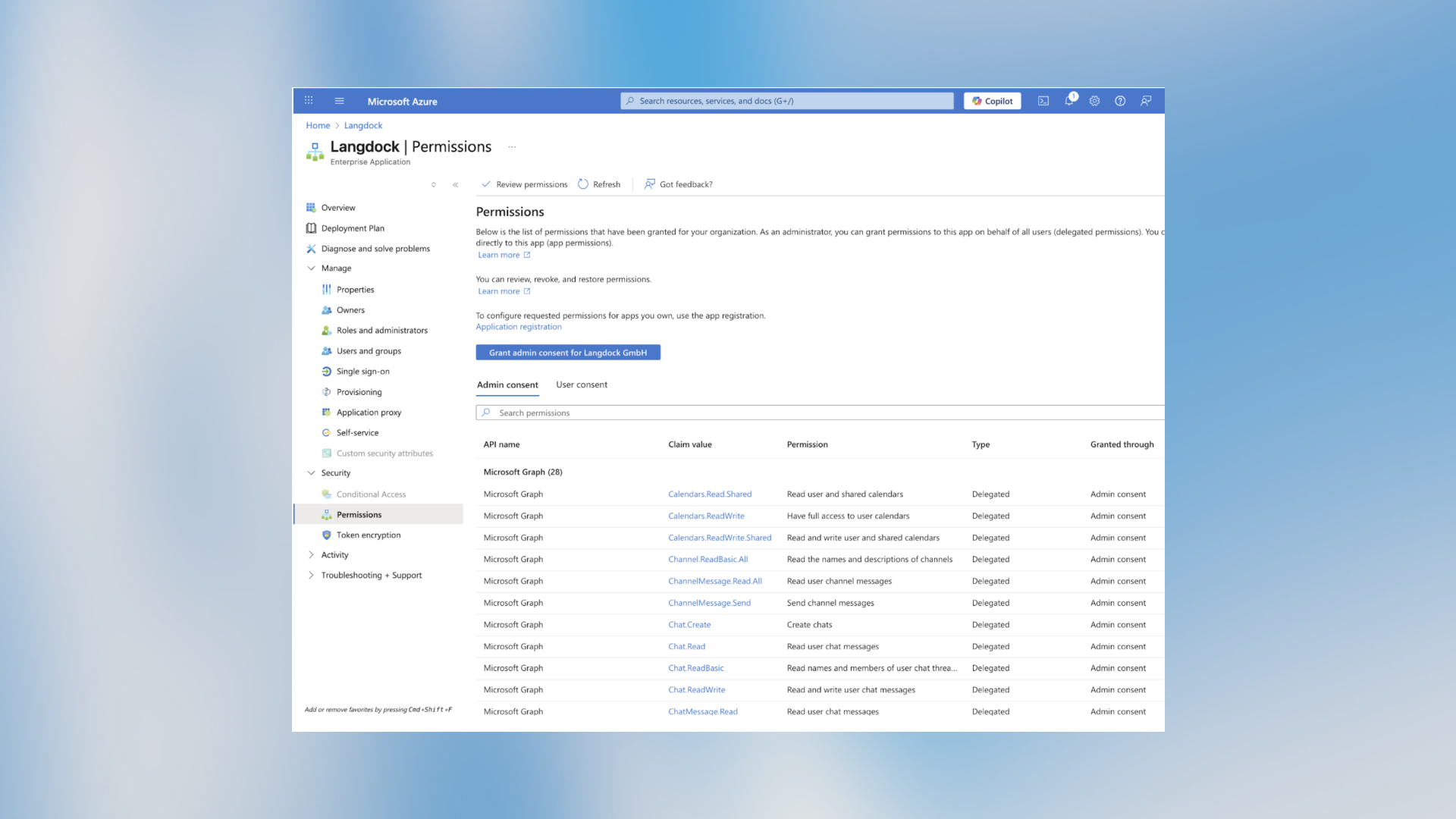
Viewing Required Permissions per Integration
Each Microsoft integration requires specific permissions (scopes). To see what a particular integration needs:- In Langdock, go to Workspace settings → Integrations
- Select the Microsoft integration, such as Outlook Calendar
- Scroll to Scopes and Action Access
- Open Scope view to review the required scopes
Common Permissions
Customizing Permissions
If your organization requires different scopes than Langdock’s defaults, you can configure your own OAuth client.Configure Custom OAuth Client
Set up your own OAuth application to control exactly which scopes are requested.