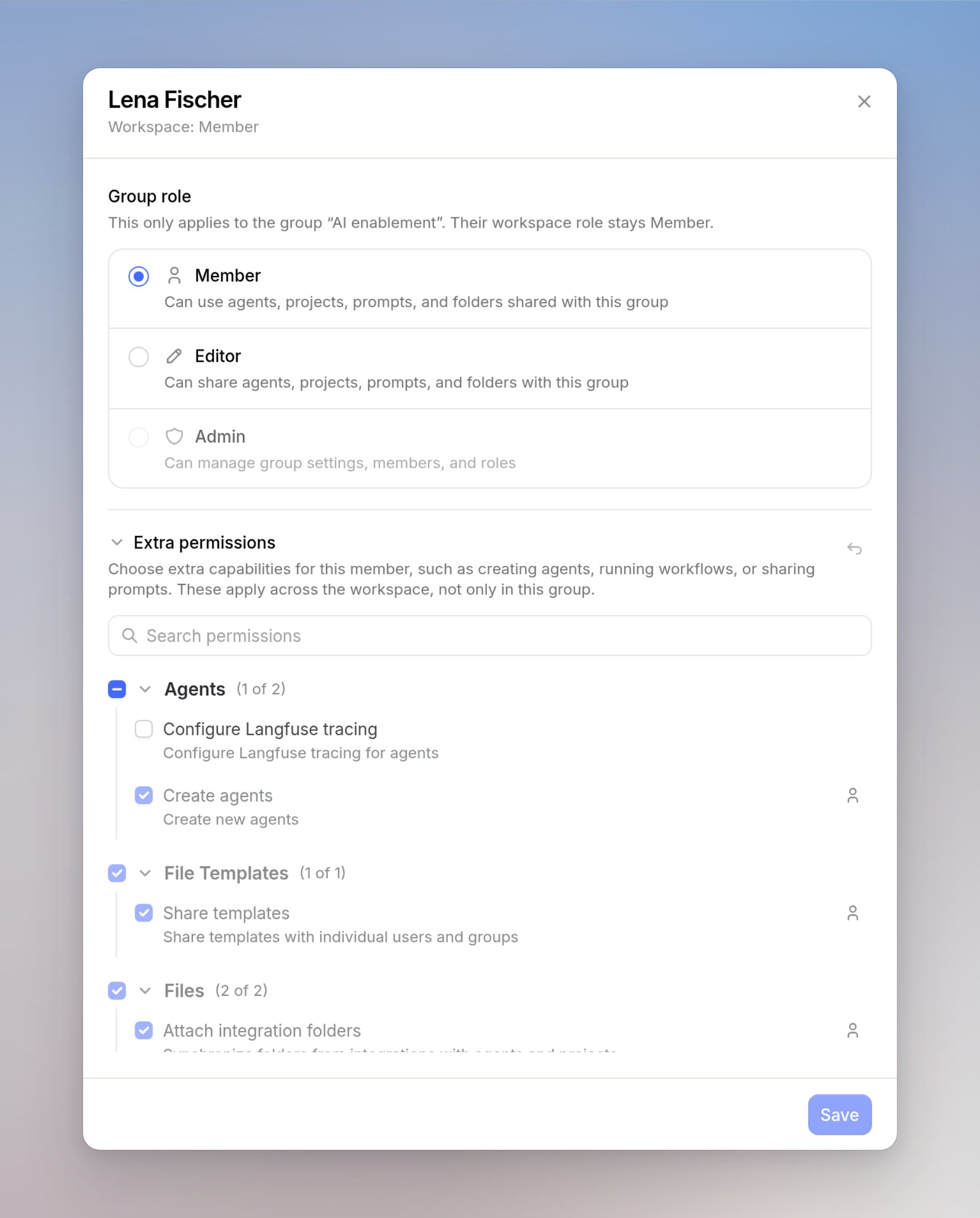
Compose access from a system role, optional custom roles, and optional extra permissions. People who keep their current role are unchanged. Admin always has every permission.
This page is available to workspace admins.
System roles
Member, Editor, and Admin come with the workspace and cannot be deleted.- Member: default access for daily work
- Editor: create and share most products, without workspace settings
- Admin: every permission, including workspace settings and user management
Creating custom roles
You can also configure custom roles when several people need the same extra access. You can create up to 5. Use it when a few people should create agents and share templates without becoming admins. Name the role something like “Champion”, then assign it on Members. If usage gets too high, turn that permission off on the role. Everyone with the role loses it at once.1
Open Create role
On Roles, under Custom roles, click Create role. The Create a custom role dialog opens.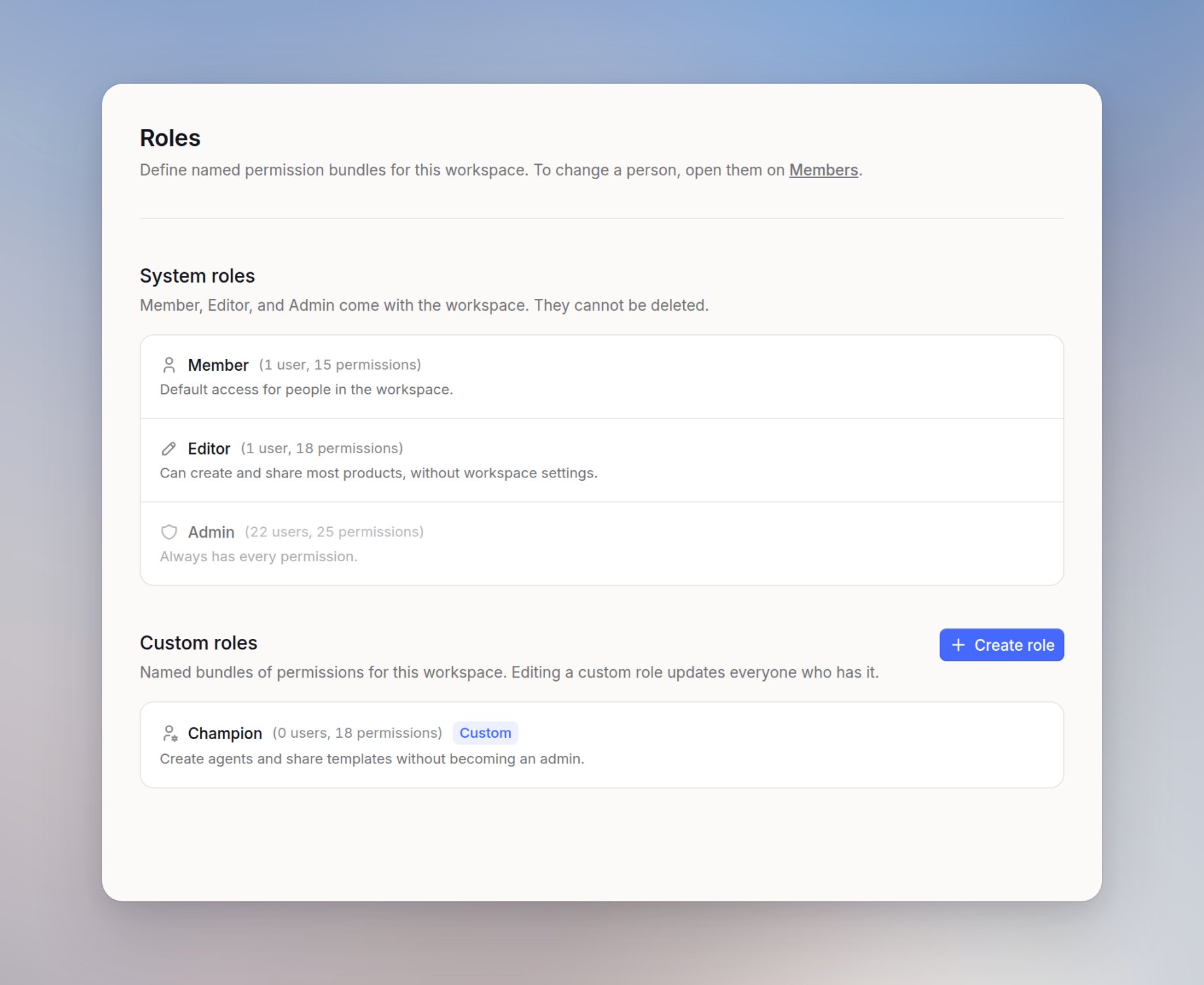
2
Start from a role
Choose Start from Member or Editor so the new role copies those permissions. Enter a Name, add a Description if you want, then click Create role.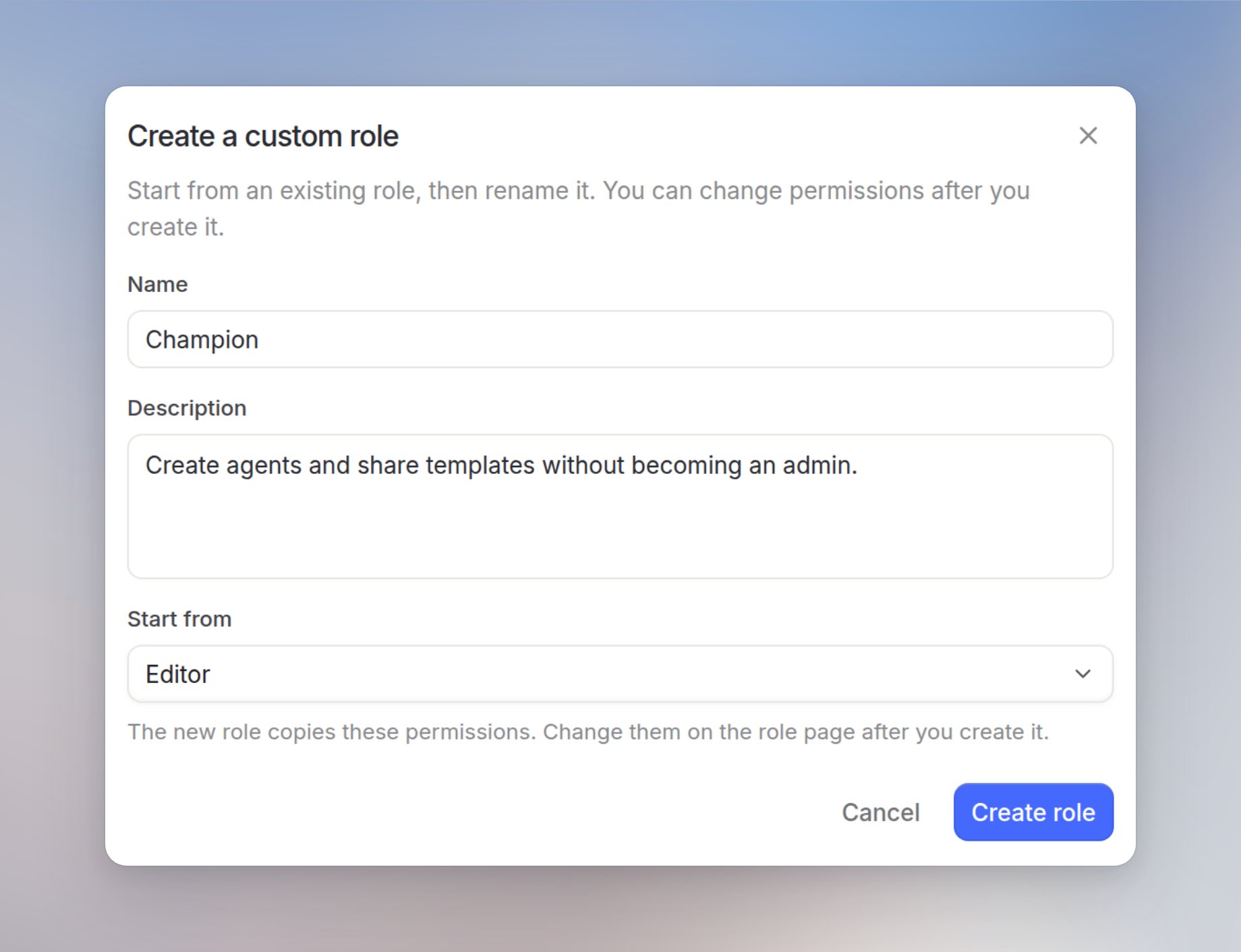
3
Turn permissions on
On the role page, turn on the permissions this role should have.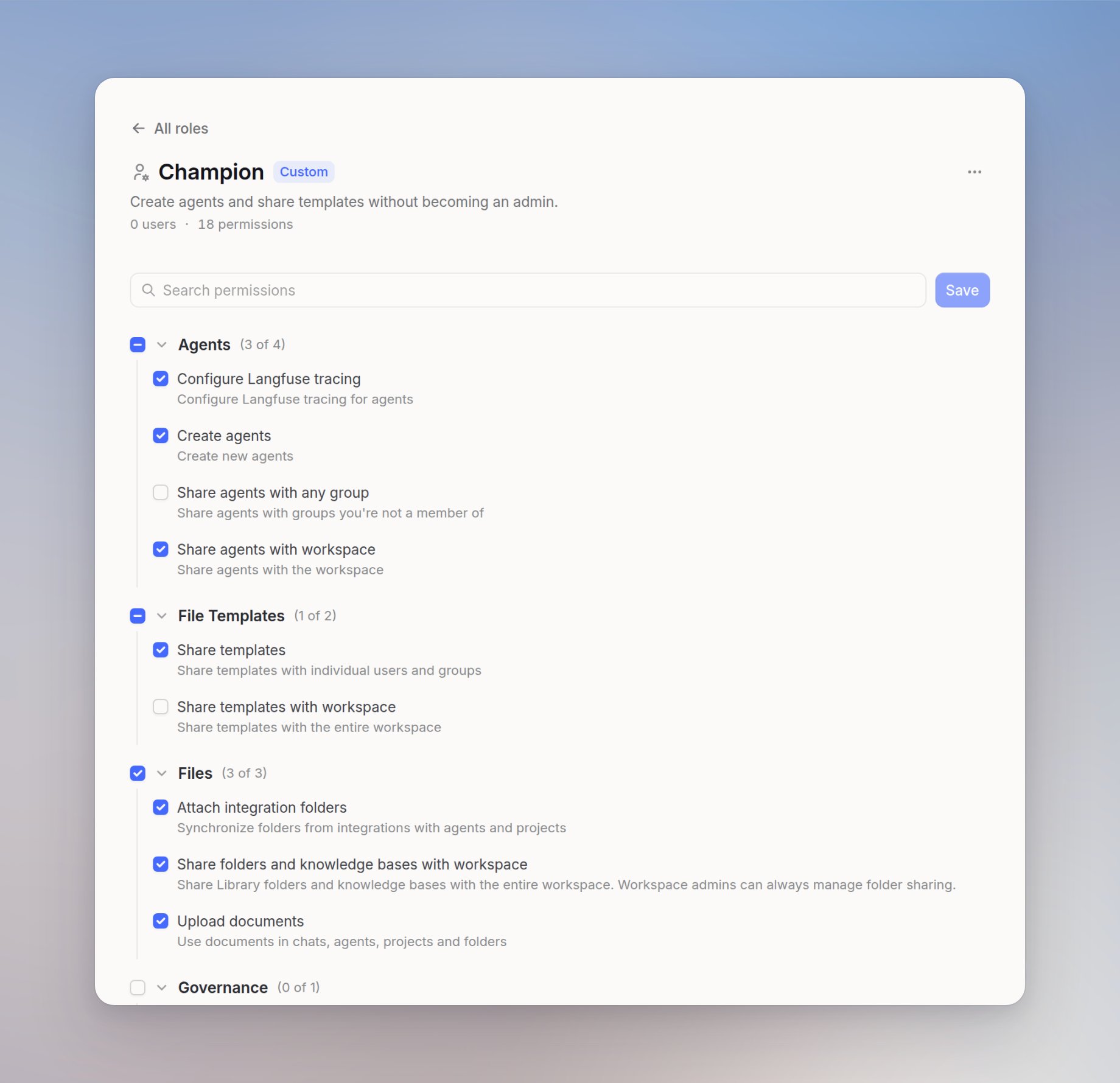
Group permissions
You can also configure extra permissions at a group level, so that people in a group can, for example, get product access without needing to become workspace admins. Groups also have their own roles that are different from the system roles of your workspace. To configure group permissions in your workspace, open Groups in your workspace settings.Group roles
A group role only applies inside that group. It does not change the workspace role.- Group Members can use resources shared with the group
- Group Editors can share resources with the group
- Group Admins can do that, and they can add people and change group roles to Member or Editor
Group admin
A Group Admin manages the group. They are not a workspace admin. They cannot change workspace system roles, create custom roles, or turn products on or off for the workspace. Only a workspace admin can assign the Group Admin role. From the start, a Group Admin can:- Share resources with the group
- Add and remove people
- Change group roles to Member or Editor
- Change the group name and description
- Delete the group
- Grant extra permissions to people in that group, such as Create agents or Share templates
- Grant only to people in the group. After that, the user can use the access across the workspace
Assigning roles and extra permissions
Assigning a user a role or extra permissions
On Members, click the user’s role. The Edit access drawer opens.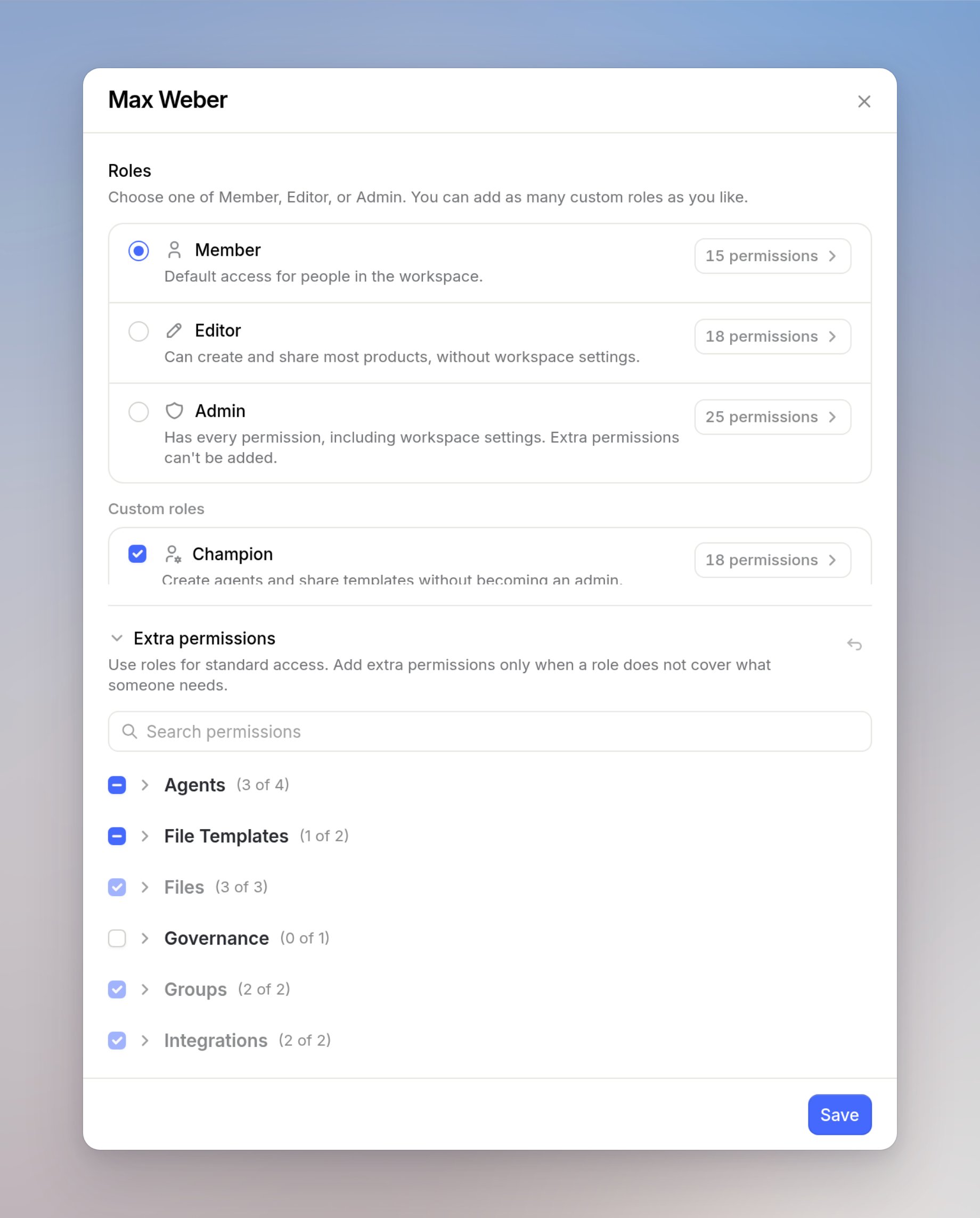
Making a user a Group Admin
On Groups, open the group. Set that user to Admin in the group. Their workspace role can stay Member or Editor. Only a workspace admin can assign the Group Admin role.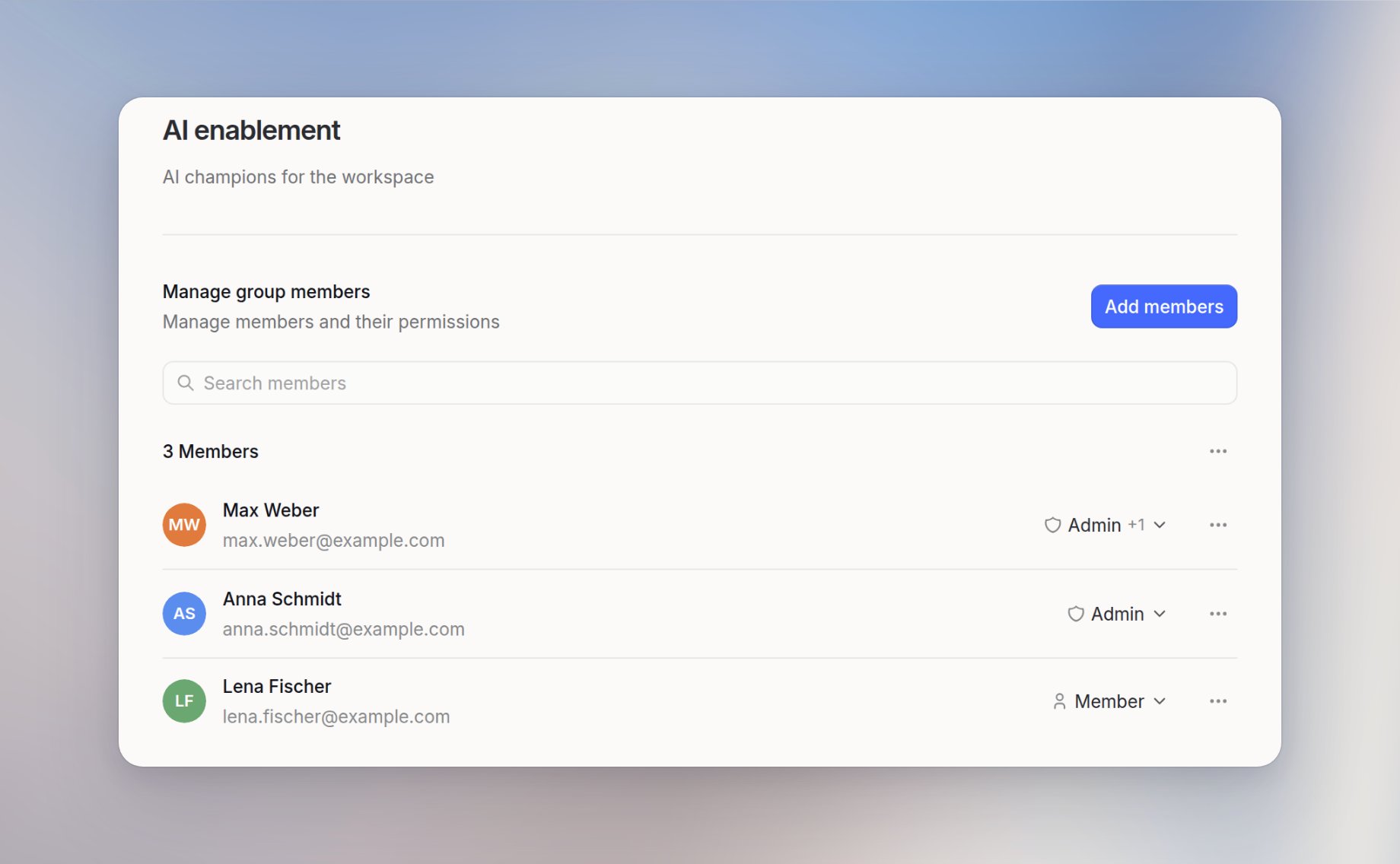
Turning on extra permissions for Group Admins
On Groups, open that Group Admin. Turn on Grant extra permissions to group members. They do not become a workspace admin.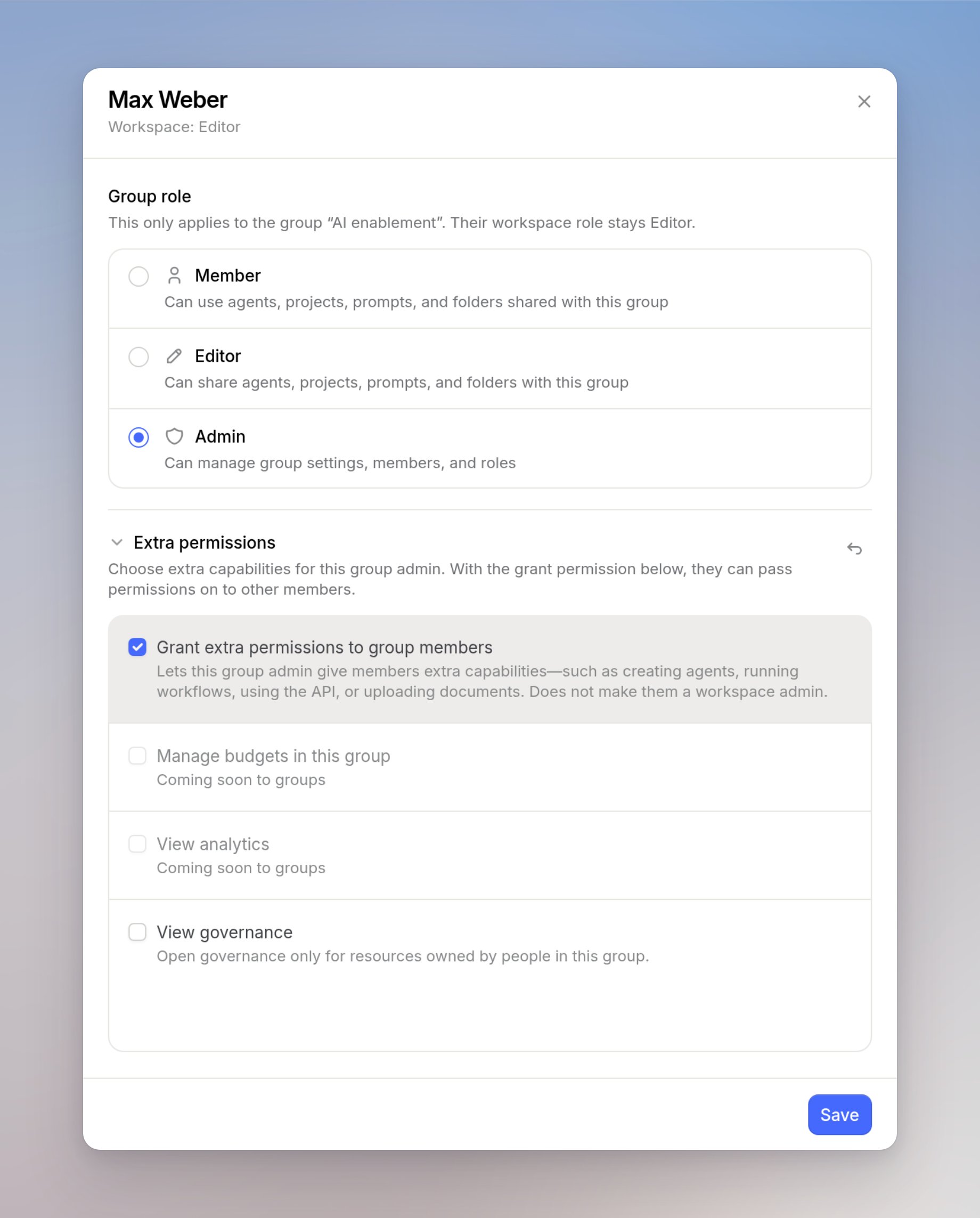
Granting extra permissions in a group
On Groups, if Grant extra permissions to group members is on, open a user in the group. Under Extra permissions, turn on what they should have. They can use that access across the workspace.