

Prerequisites
- You are a workspace admin.
- Navigate to Integrations in your workspace settings, then select the integration you want to manage.
Enable an integration for the workspace
Built-in integrations are enabled for the entire workspace by default, so every member and editor can connect and use them. Custom API integrations appear in the same list and start without workspace access until you turn on Enable for entire workspace. Filter by Type to show Built-in integrations or Custom integrations.

Share an integration with specific users or groups
To limit an integration to certain people, share it instead of enabling it for everyone. Custom API integrations use the same Manage access dialog.1. Turn off workspace access
Turn off Enable for entire workspace. You cannot share an integration with specific users while it is enabled for everyone.2. Open Manage access
Click Manage access to open the access dialog.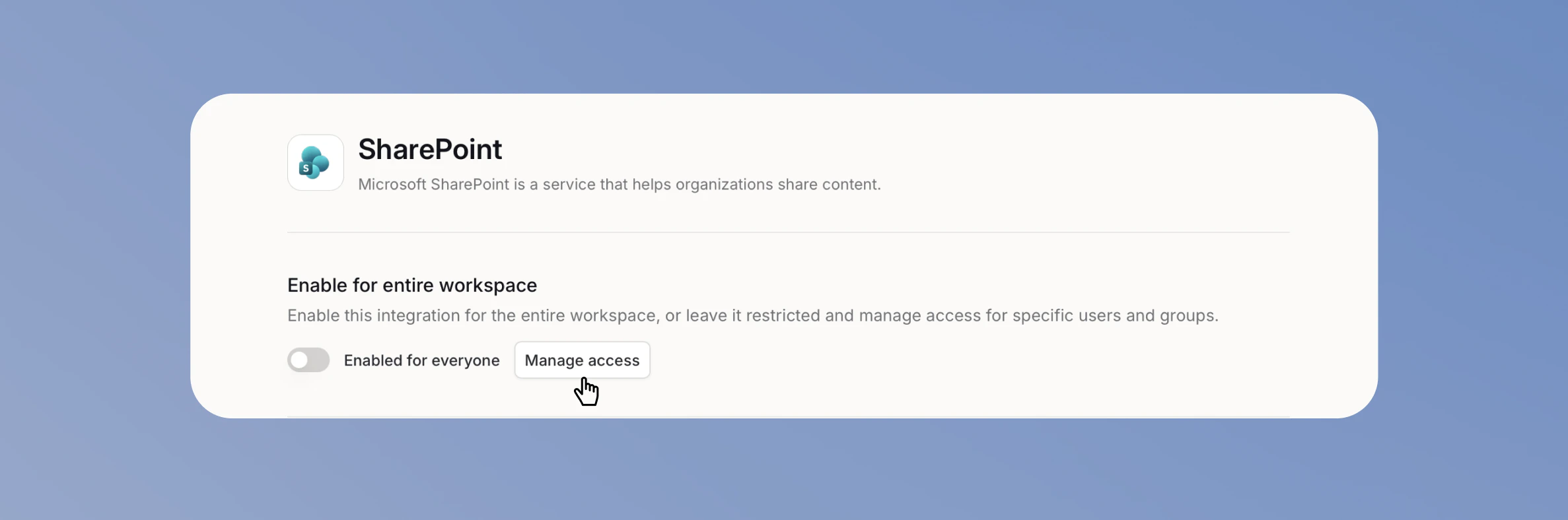
3. Add users or groups
Search for and select the users or groups you want to give access to. You can add several at once.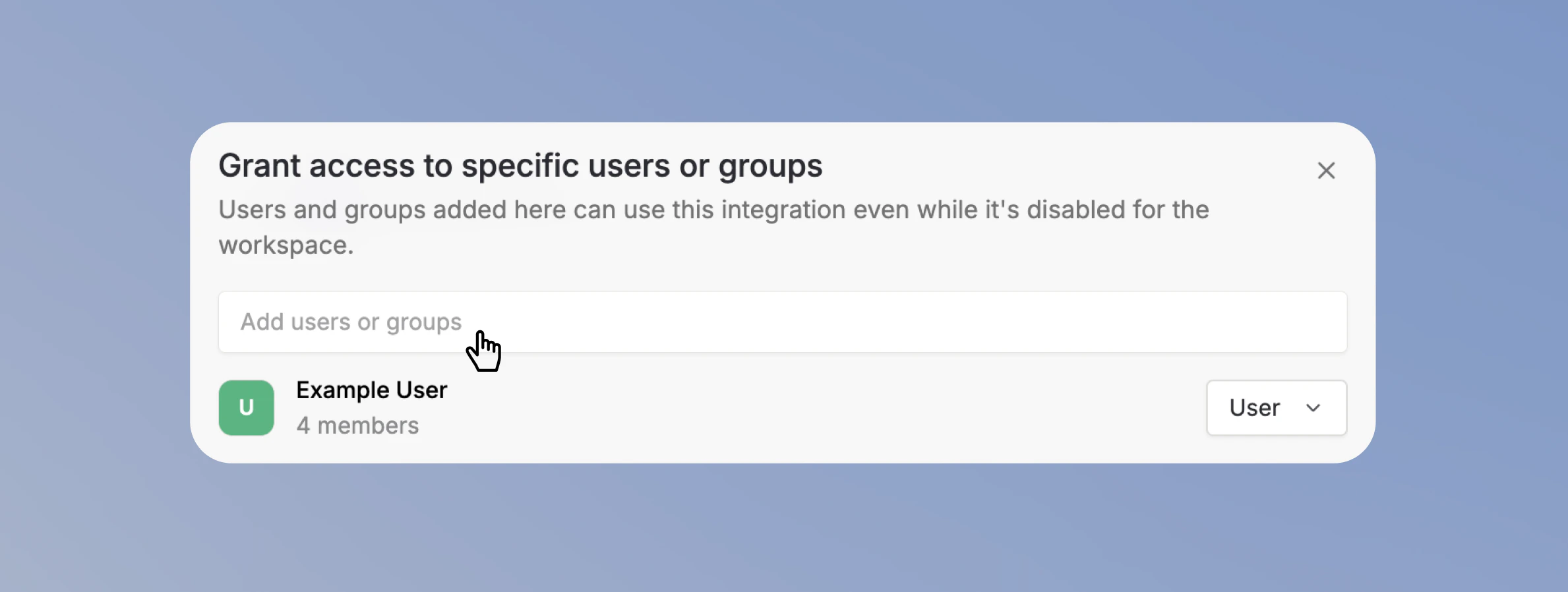
Editors add users and groups from the integration’s Share page. For a custom API, that page shows General access and the notice that workspace-wide access is managed by admins in the settings.

Control actions in Scopes and Action Access
Scroll to the Scopes and Action Access section to control which actions are available in your workspace.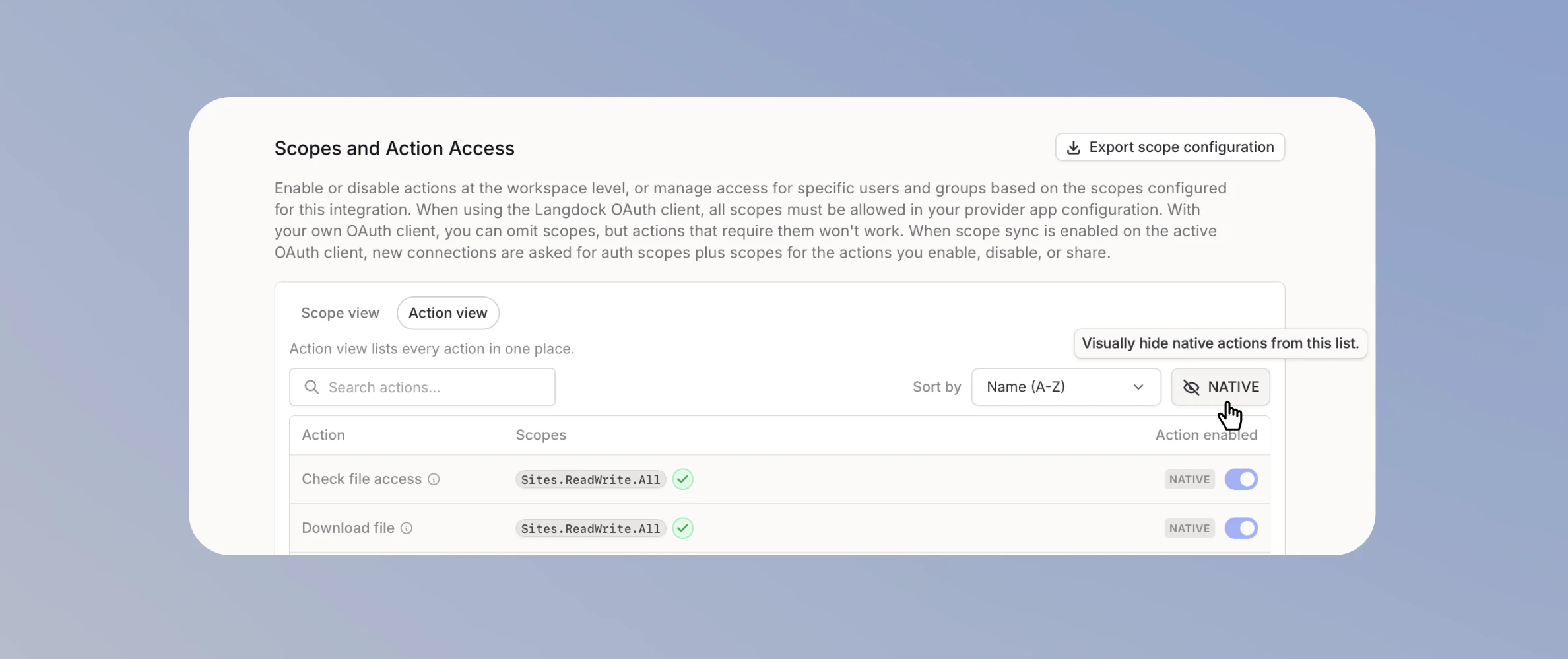
Switch to the Action view tab to see and manage individual actions and their access.
Share an action with specific users, groups, or workspace API keys
Each action has an Available to all users toggle.- When it is on, everyone in the workspace can use the action.
- When you turn it off, a Share button and a Users & groups with access list appear.
1. Turn off Available to all users
On the action’s row, turn off Available to all users.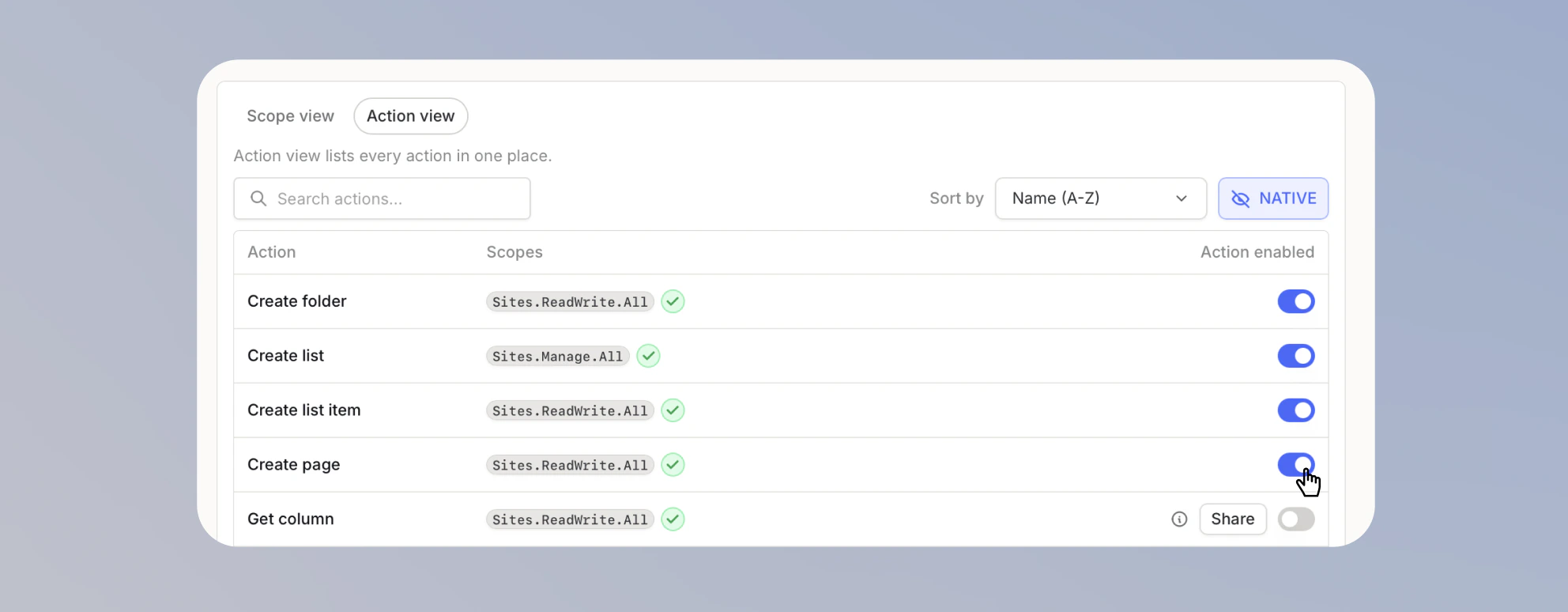
2. Share the action
Click Share to open the action’s share dialog, then search for and select the users, groups, or workspace API keys.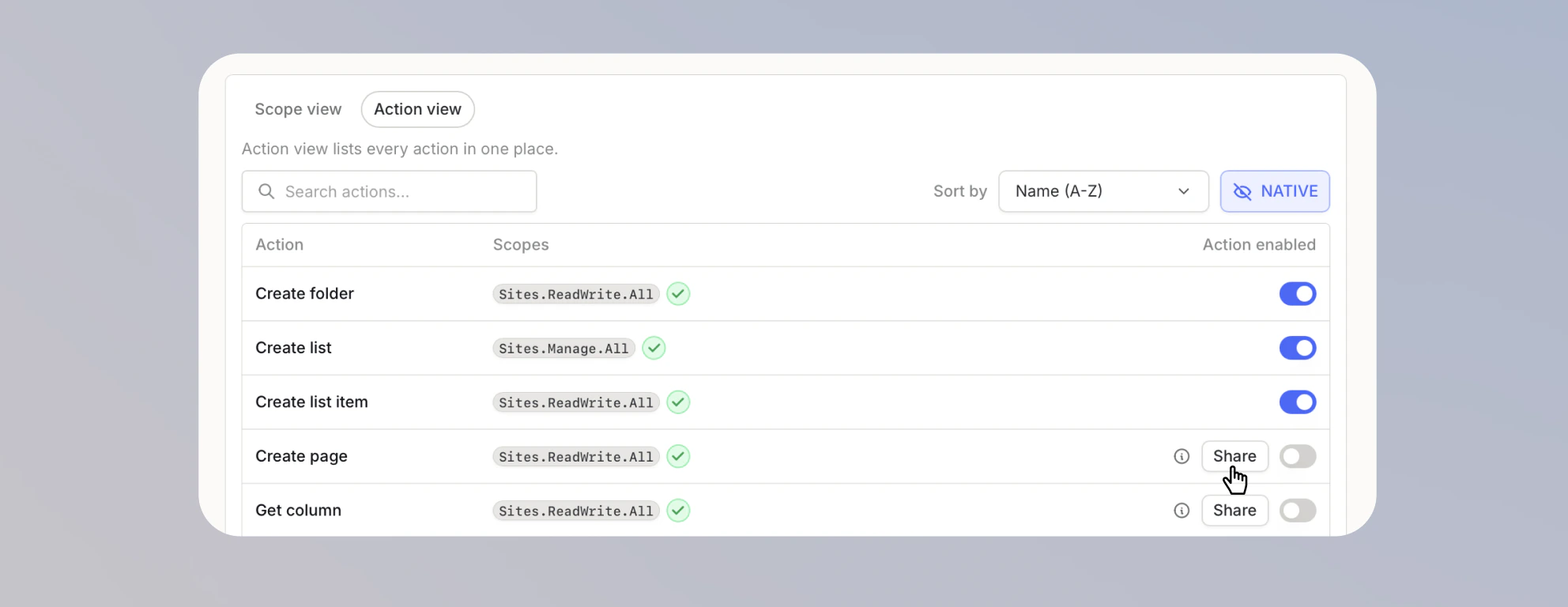
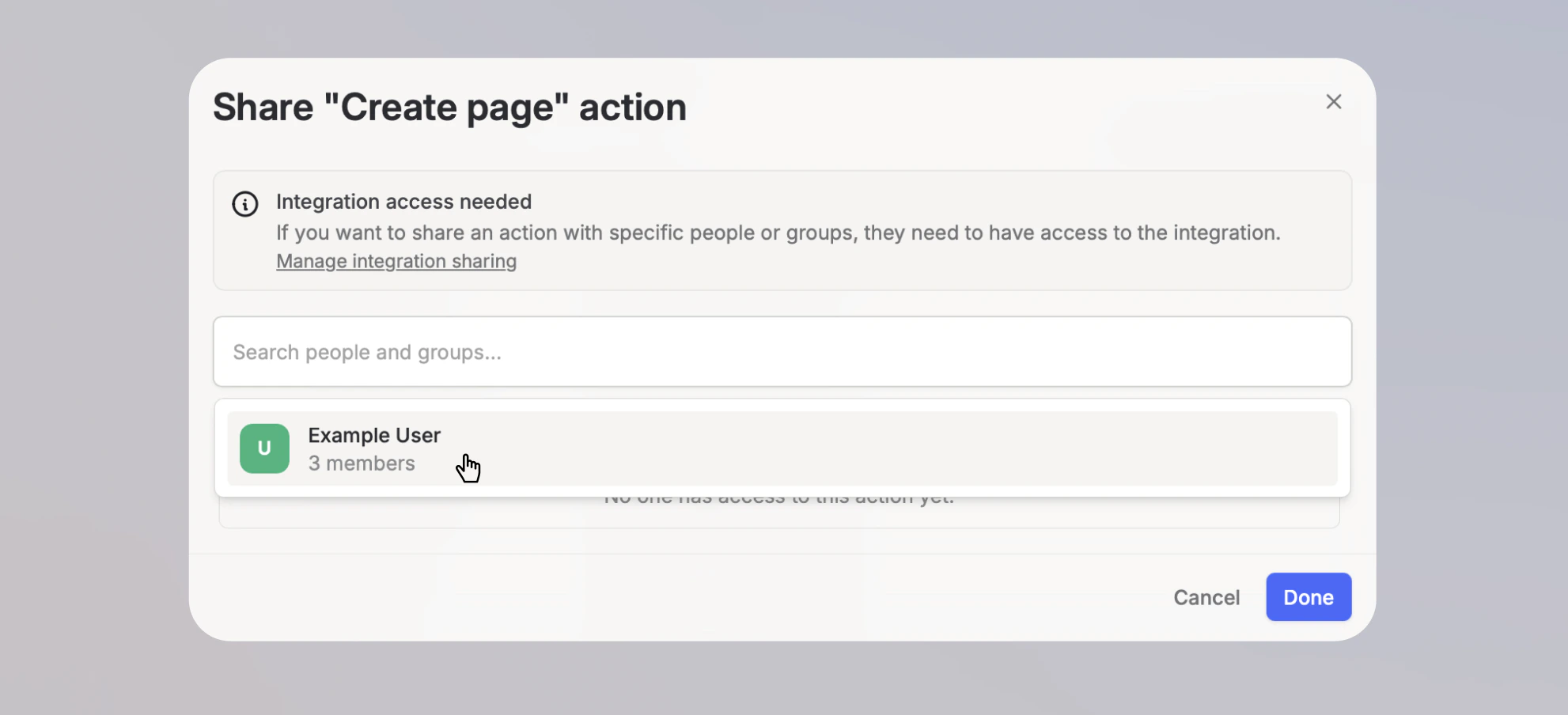
To share an action with specific people, groups, or workspace API keys, they also need access to the integration. If they don’t, grant it first using Manage integration sharing in the share dialog.