

You can use the Word add-in when an admin sets it to Everyone, or to Specific members and groups and includes you or a group you belong to. If you don’t have access, point your admin to the Add-in Setup Guide.
How to install Langdock for Word
Install the Langdock Add-in from the Microsoft Marketplace and connect it to your Langdock account. The add-in runs in Word on the web, Word for Windows, and Word for Mac. Use a current version: working with comments and tracked changes needs Microsoft 365 Apps, Version 2308 or later, on Windows, or Version 16.76 or later on Mac, and isn’t available in Word LTSC 2021 or earlier. If your admin already deployed the add-in for your organization, which is always the case on dedicated deployments, skip the Marketplace steps: in Word, click Langdock on the Home tab, then sign in. Signing in only takes your Langdock account.1
Open the Microsoft Marketplace
Navigate to the Langdock for Word page on the Microsoft Marketplace.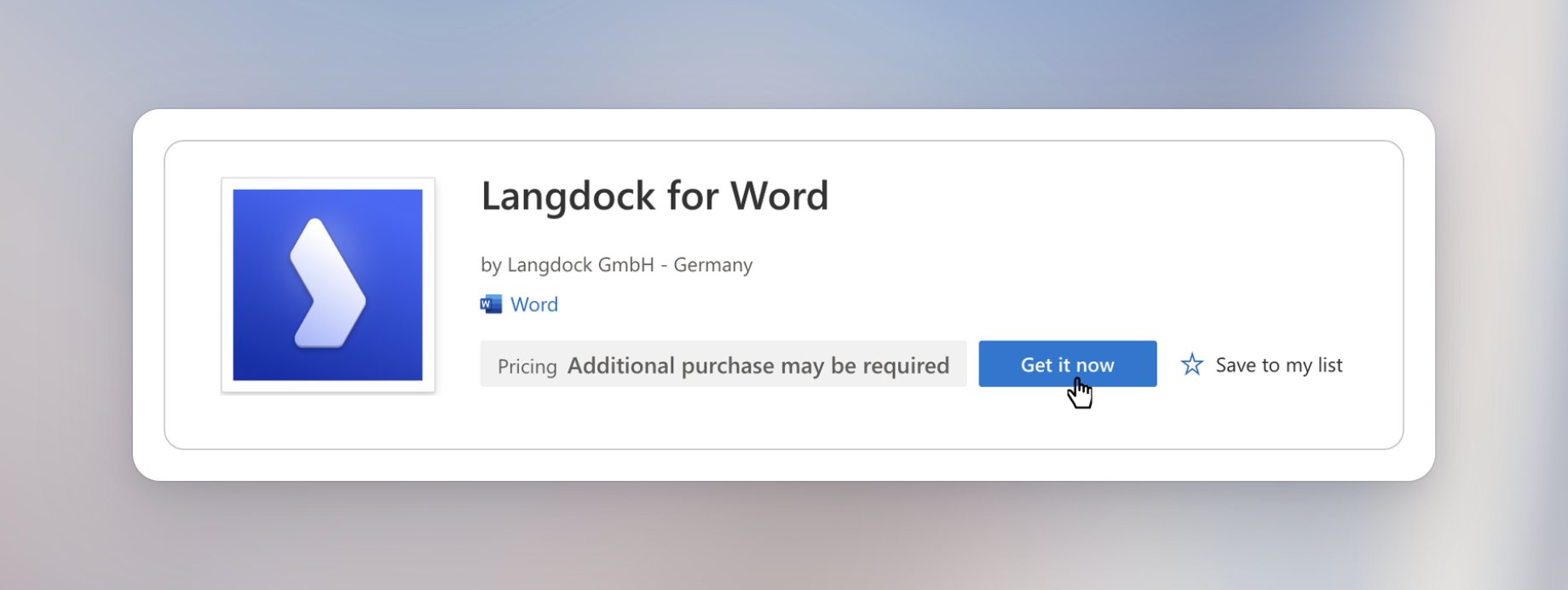
2
Get the Add-in
Click Get it now and confirm your details in the dialog that appears.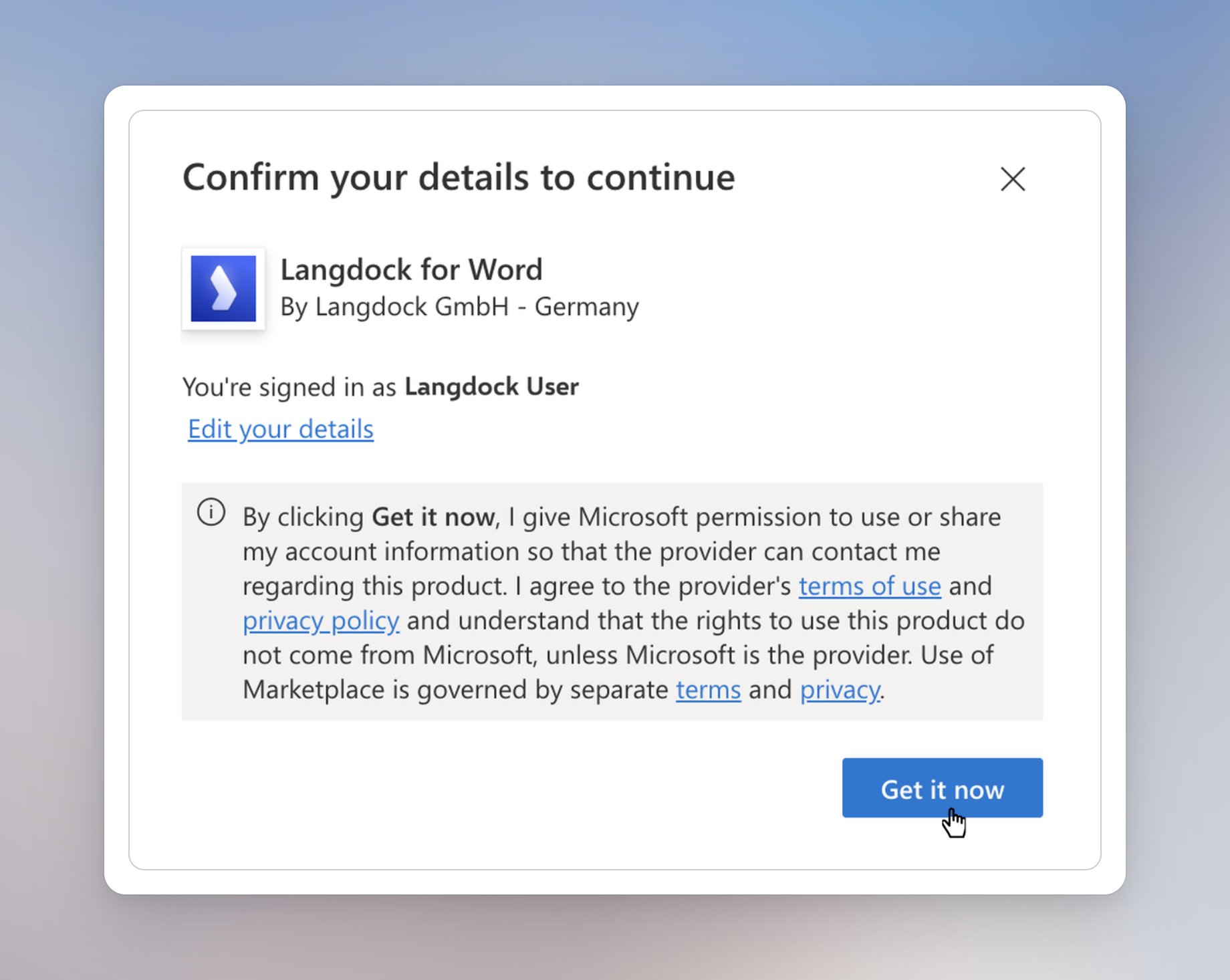
3
Open in Word
Click Open in Word to launch the Add-in directly in your document. The add-in opens in a panel next to your document.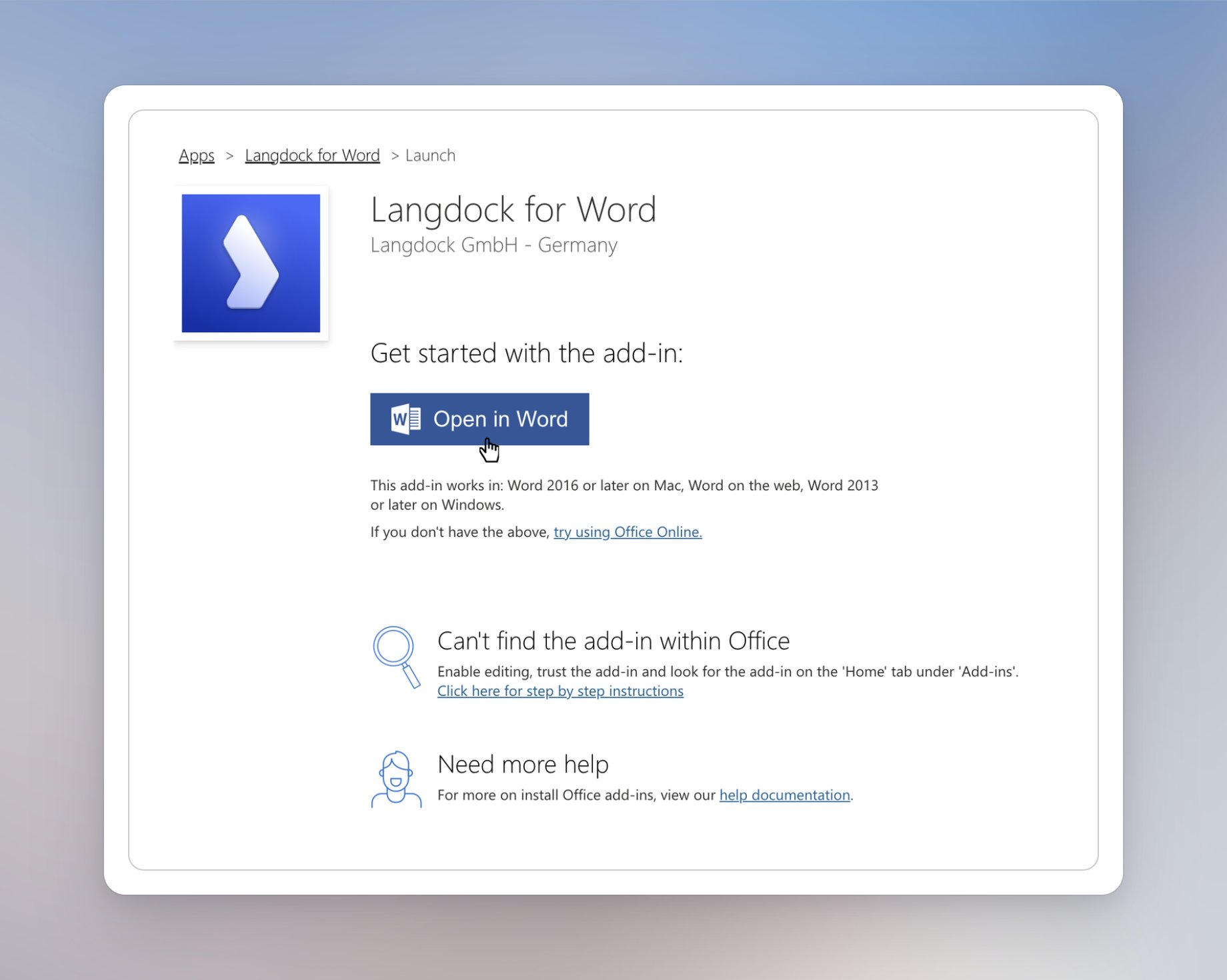
4
Sign in to Langdock
Follow the sign-in flow to connect the Add-in to your Langdock account. Click Continue to log in.
Working with Langdock in Word
The Word add-in is useful whenever the work ends in a document. Instead of drafting text in a separate chat and copying it over, you can keep Word open and use Langdock alongside it.
Common use cases
- Draft new content: Describe what you need and let Langdock write it directly into your open document, such as a summary, a deal brief, or a new clause.
- Rewrite existing text: Select a passage and ask Langdock to shorten it, change its tone, or translate it.
- Replace terms throughout: Ask Langdock to rename a defined term, a party name, or a spelling across the document.
- Ask about the document: Ask what a clause says or where a term is defined. Langdock answers in the chat and links to the section it used.
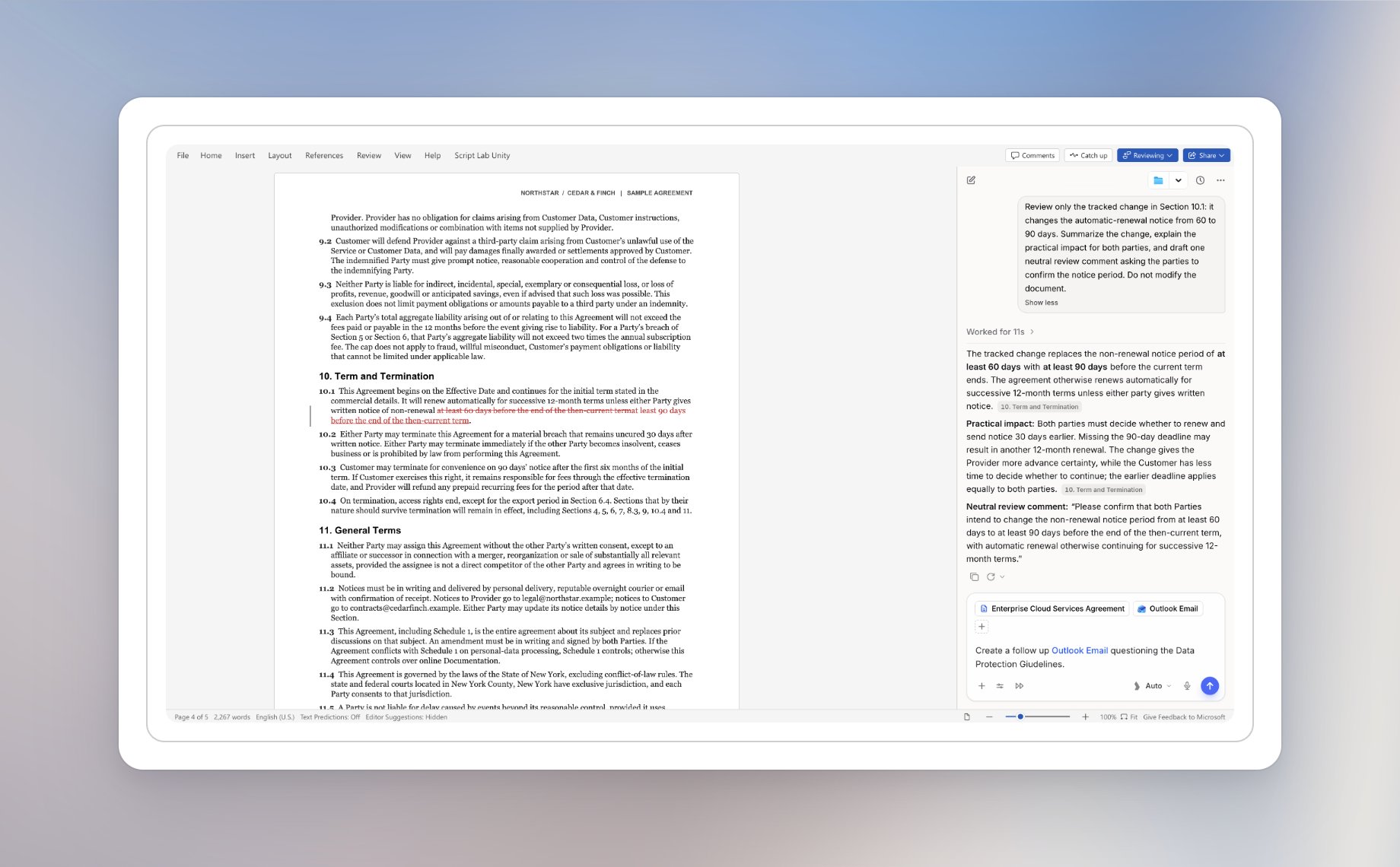
- Review tracked changes: Ask for a summary of a redline, then accept or reject the changes you’ve decided on.
- Work through comments: Let Langdock reply to open comments or add new ones for your reviewers.
Write new content
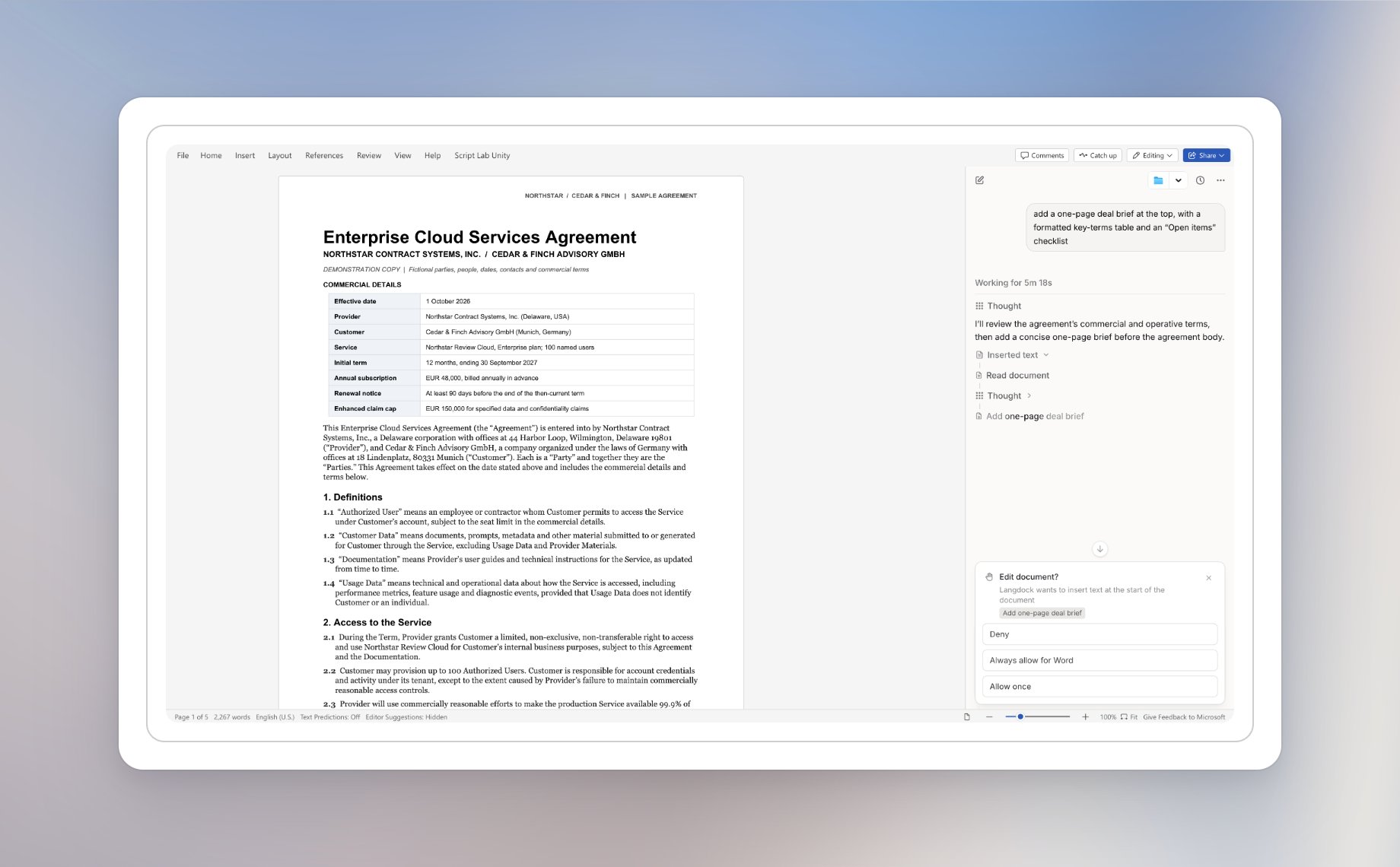
Say you need a short brief at the top of a contract. Open the Langdock Add-in next to your document and describe what you need:Add a one-page deal brief at the top, with a key-terms table and an "Open items" checklist
Langdock reads the document, writes the new section, and inserts it in the right place. New content uses regular Word headings, lists, and tables, so you can keep editing it yourself.
Edit existing text
Langdock knows which text you’ve selected. The selection shows in the chat input, and a request likeMake this shorter applies to it. With nothing selected, the request applies to the paragraph your cursor is in. You can also name the section you mean, for example Simplify section 2.3.
- Rewrite text: Shorten a passage, change its tone, or translate it.
- Replace terms: Rename a defined term or a party name throughout the main text. Headers, footers, and footnotes stay as they are.
- Change formatting: Turn a line into a heading, bold the party names, or adjust indents and spacing.
- Remove text: Ask Langdock to delete a paragraph or a clause you no longer need.
Comments and tracked changes
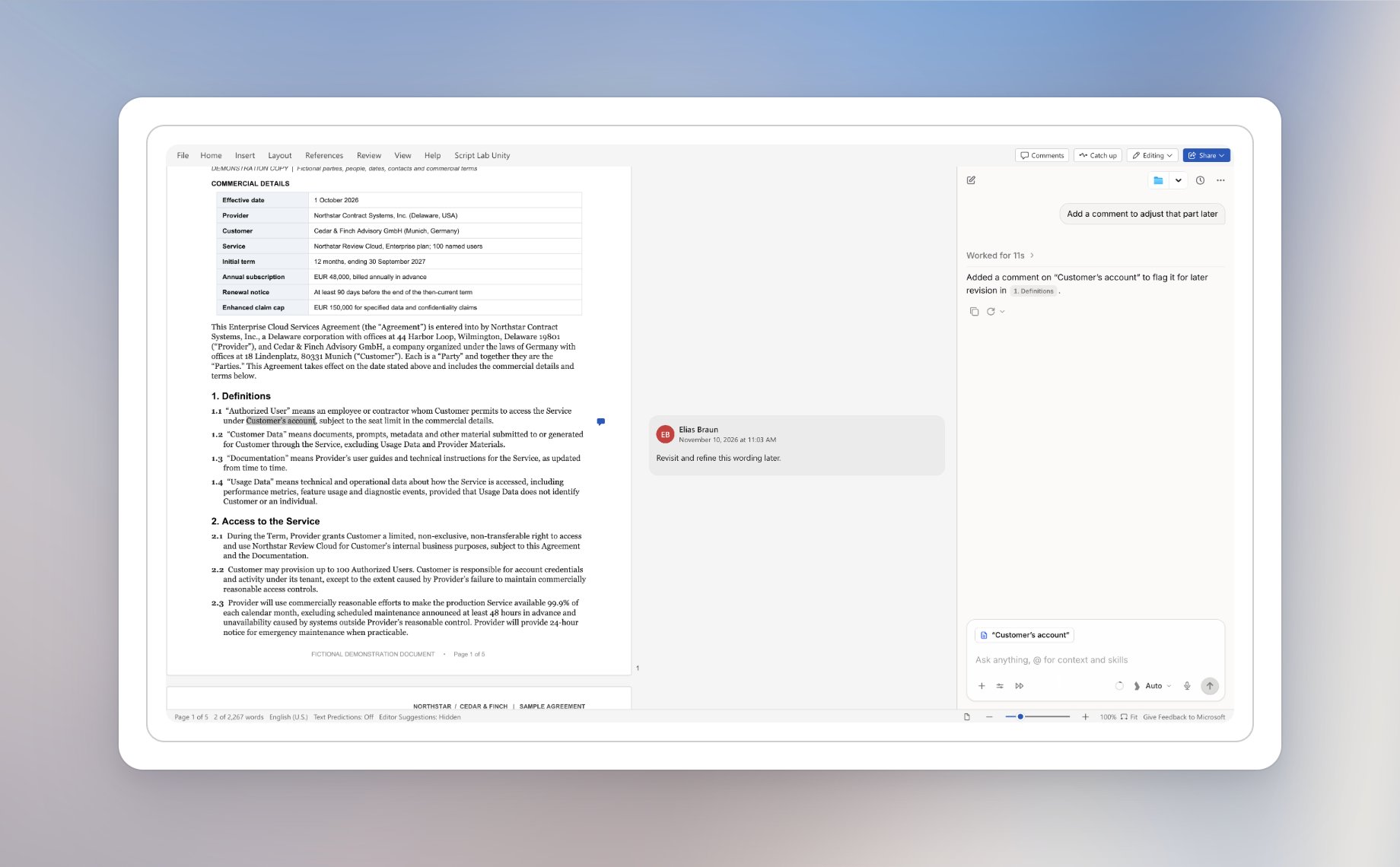
Langdock reads the comments and tracked changes in your document. Ask it to reply to comments, add new comments, or accept and reject tracked changes, for example “accept all formatting changes” or “reply to the open comments on section 2”. To leave a note for later, select the text and ask for a comment, for exampleAdd a comment to adjust that part later. Langdock anchors the comment on the selected words.
Edit permissions
Langdock asks before changing your document by default. Switch modes from the Edit permissions menu in the chat input:- Ask before edits: Langdock shows a confirmation before each change. Choose Allow once, Always allow for Word, or Deny. Always allow for Word keeps later edits allowed in new chats and after you reopen the add-in, until you choose Ask before edits or Log out.
- Accept all edits: Langdock applies edits without asking.
Save to folder
Click Save to folder in the top bar. Choose a Folder you can edit, or click New folder to create one. Langdock saves the open document into that folder. The button then shows the folder name. Click it to save into that folder again. Other people can open the document when the folder is shared with them.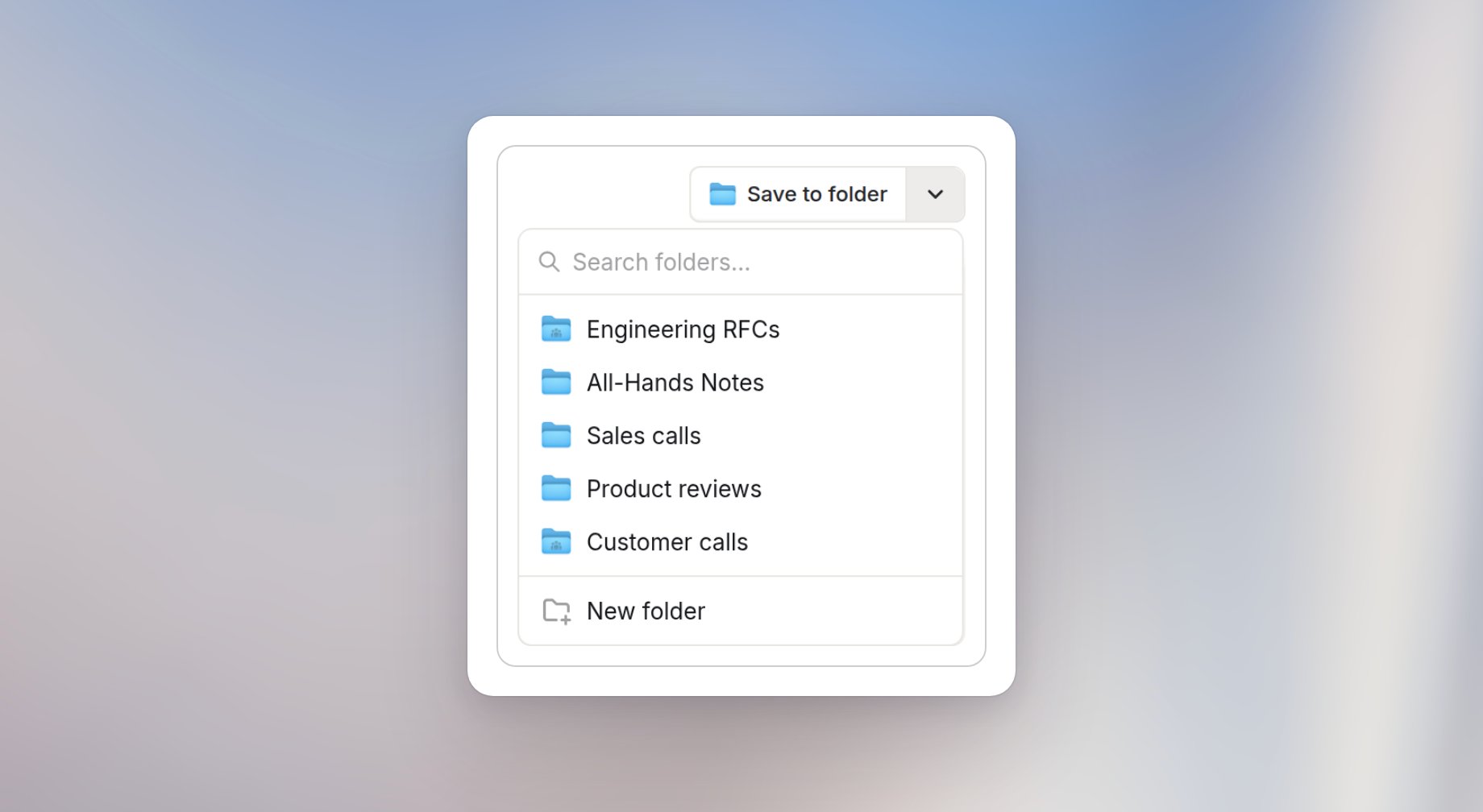
Preferences
Open the add-in menu in the top bar and select Preferences to customize the add-in:- Instructions: Add custom instructions that apply only to chats in the Word add-in, for example
Use formal language. Keep defined terms exactly as written. - Default model: New add-in chats start on Auto mode. After you pick another model, Reset takes you back to Auto mode.
- Always track edits: When this is off, edits from Langdock follow Word’s own Track Changes setting. Turn it on to show every edit as a tracked change you accept or reject in Word. Changes are attributed to the signed-in Word user.