

You can use the PowerPoint add-in when an admin sets it to Everyone, or to Specific members and groups and includes you or a group you belong to. If you don’t have access, point your admin to the Add-in Setup Guide.
How to install Langdock for PowerPoint
Install the Langdock Add-in from the Microsoft Marketplace and connect it to your Langdock account. The add-in runs in PowerPoint on the web, PowerPoint for Windows, and PowerPoint for Mac. Use a current version: some edits to existing slides need Microsoft 365 Apps, Version 2504 or later, on Windows, or Version 16.96 or later on Mac, and aren’t available in PowerPoint LTSC 2021 and 2024. If your admin already deployed the add-in for your organization, which is always the case on dedicated deployments, skip the Marketplace steps: in PowerPoint, click Langdock on the Home tab, then sign in. Signing in only takes your Langdock account.1
Open the Microsoft Marketplace
Navigate to the Langdock for PowerPoint page on the Microsoft Marketplace.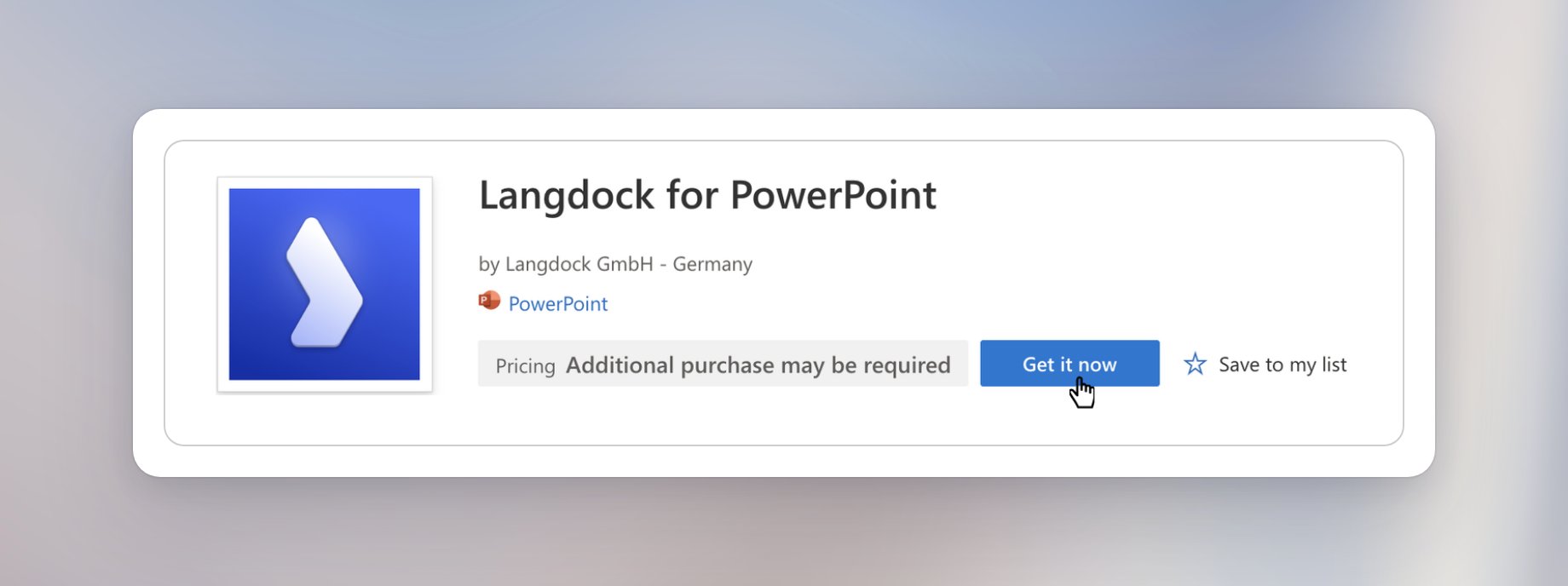
2
Get the Add-in
Click Get it now and confirm your details in the dialog that appears.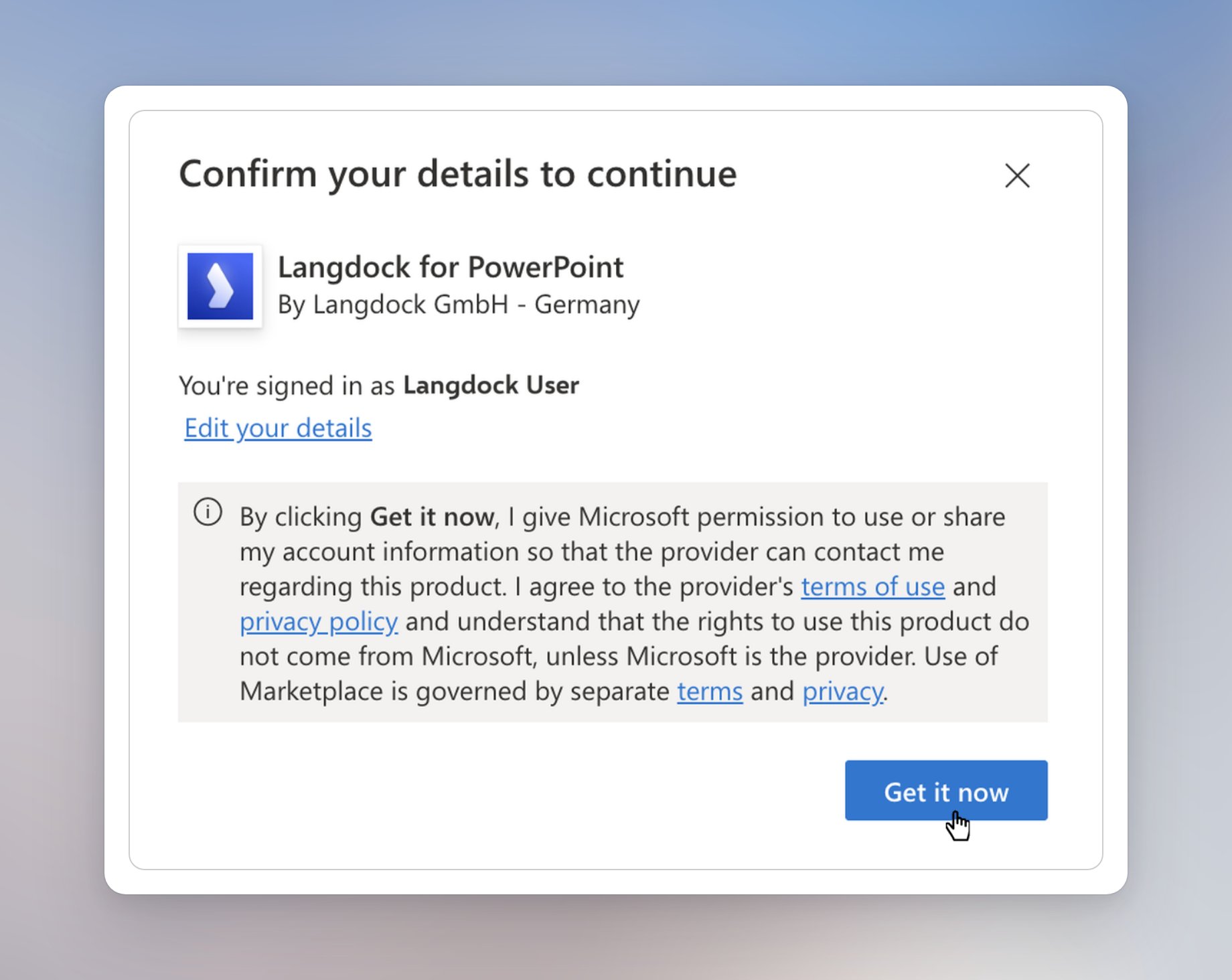
3
Open in PowerPoint
Click Open in PowerPoint to launch the Add-in directly in your presentation. The add-in opens in a panel next to your slides.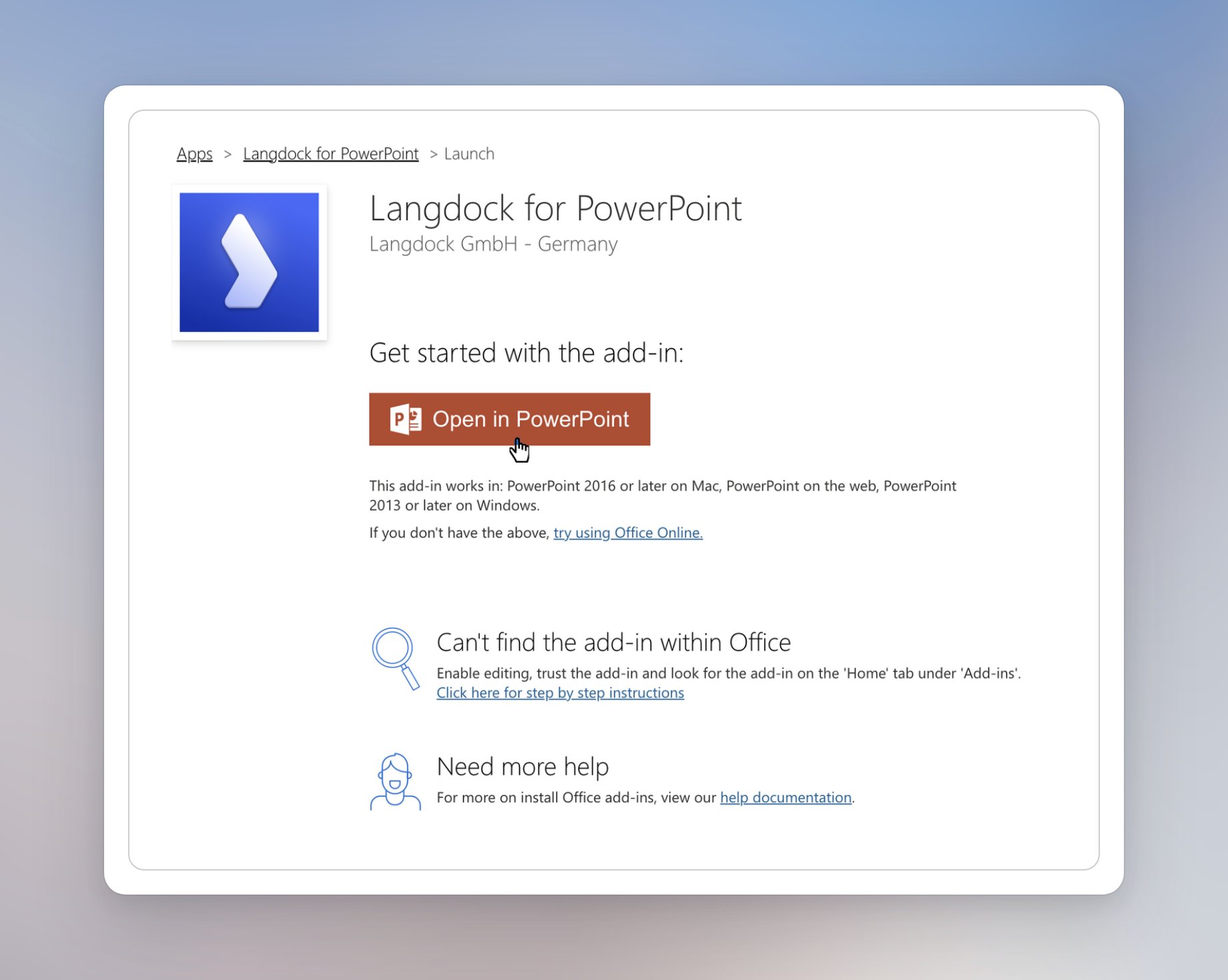
4
Sign in to Langdock
Follow the sign-in flow to connect the Add-in to your Langdock account. Click Continue to log in.
5
Add your presentation template
Langdock asks for your presentation template the first time. Click Attach to upload a .pptx or .potx file, or Choose from Library to pick one you already saved. New slides then use the template’s layouts, fonts, and colors. Click Skip to use Langdock’s own styles instead.
Working with Langdock in PowerPoint
The PowerPoint add-in is useful whenever the work ends in a deck. Instead of building slides in a separate chat and copying them over, you can keep PowerPoint open and use Langdock alongside it.
Common use cases
- Build a deck from a brief: Describe the audience and the goal and let Langdock create a complete presentation directly in your open deck, such as a quarterly business review, a product pitch, or a project update.
- Turn notes and documents into slides: Attach meeting notes, a report, or a document and ask Langdock to turn the content into a structured presentation.
- Rework existing slides: Select slides or shapes and ask Langdock to shorten the text, restructure a slide, or tidy up its layout.
- Add charts, tables, and visuals: Ask Langdock to turn numbers into a chart or table, or to add images and icons that support your message.
- Stay on brand: Use your presentation template so new slides follow your company’s layouts, fonts, and colors.
- Sharpen the story: Ask for an outline, a stronger opening, or concise talking points before you build the slides.
Create slides from scratch
Say you need a readout of your latest user research. Open the Langdock Add-in next to your deck and describe the presentation you need:Create a research readout of our 18 user interviews with four key insights and next steps
If your request doesn’t say who the deck is for, how long it should be, or what to focus on, Langdock asks a few short questions first. It then plans the storyline, designs the slides, and adds them to your open deck. Langdock can also add pictures, charts, and speaker notes. The slides are regular PowerPoint slides, so you can keep editing the text, shapes, and charts yourself.
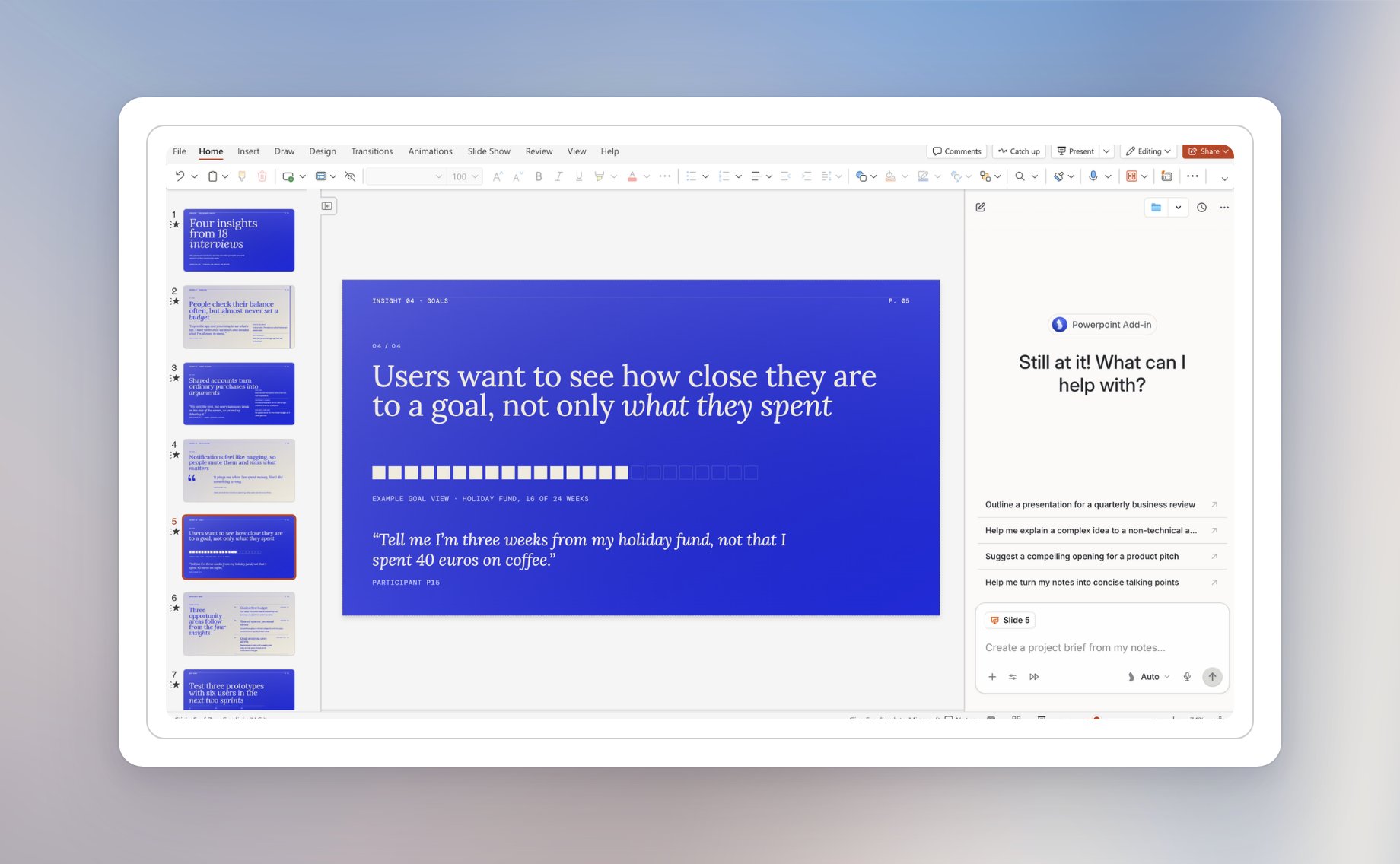
Edit existing slides
Langdock knows which slides and shapes you’ve selected. The selection shows in the chat input, for example Slide 5, and a request likeMake this shorter applies to it. You can also name the slides you mean, for example Combine slides 3 and 4.
- Rewrite text: Shorten a slide, change its tone, or translate it.
- Change the layout: Move, align, or recolor elements, or ask Langdock to redesign a slide.
- Add content: Add a chart, a table, an image, or an icon to a slide.
- Remove slides: Ask Langdock to delete slides you no longer need.
Presentation templates
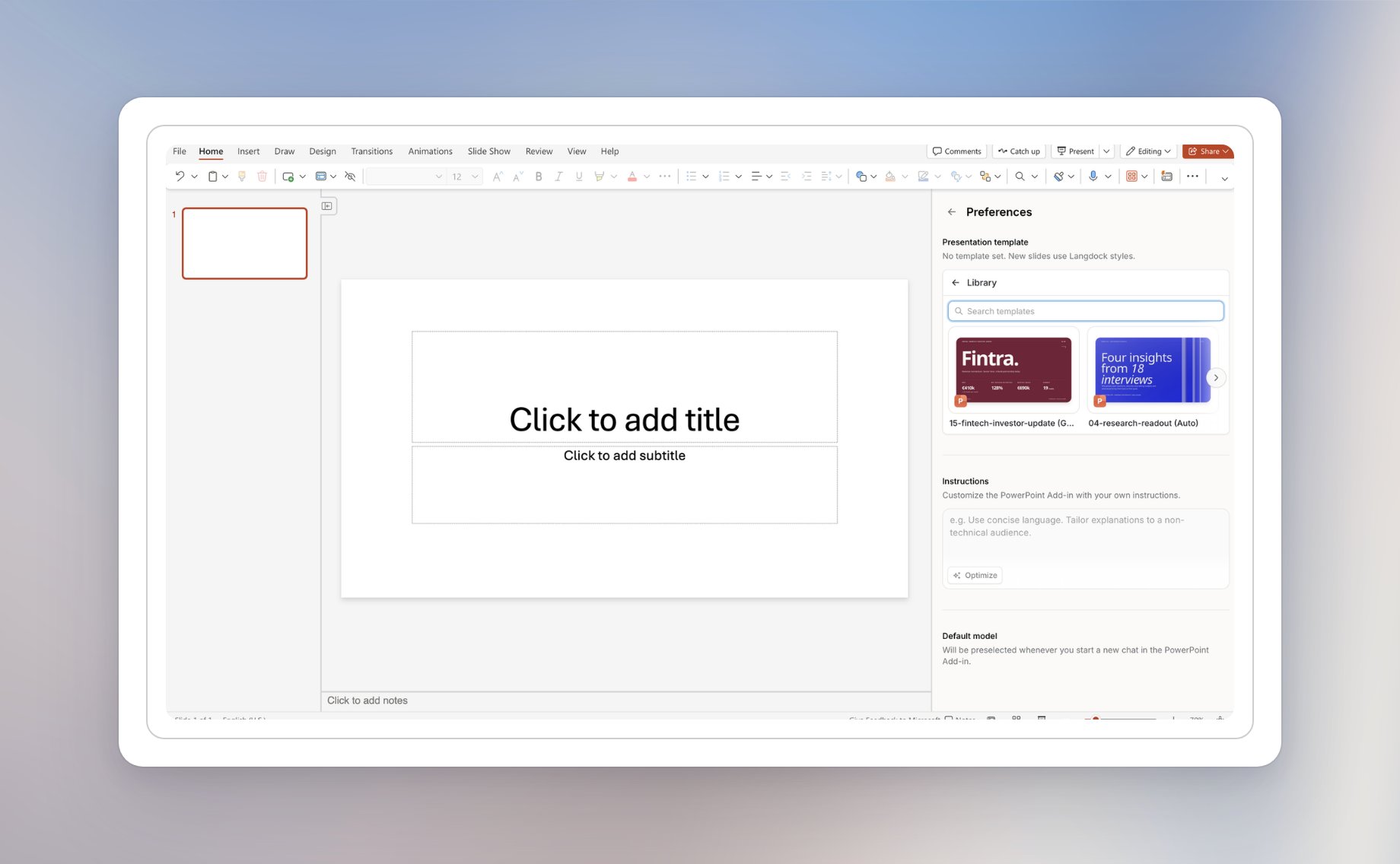
Langdock builds new slides from your presentation template, so a new deck matches your company’s design: its layouts, fonts, colors, icons, and styles. You can set your template in two ways:- Attach: Upload a .pptx or .potx file from your device, or pick one from a connected integration such as SharePoint, OneDrive, or Google Drive.
- Choose from Library: Pick one of the presentation templates in your Library, including templates shared with you. Use Search templates to find one by name.
Edit permissions
Langdock asks before changing your presentation by default. Switch modes from the Edit permissions menu in the chat input:- Ask before edits: Langdock shows a confirmation before each change. Choose Allow once, Always allow for PowerPoint, or Deny. Always allow for PowerPoint keeps later edits allowed in new chats and after you reopen the add-in, until you choose Ask before edits or Log out.
- Accept all edits: Langdock applies edits without asking.
Save to folder
Click Save to folder in the top bar. Choose a Folder you can edit, or click New folder to create one. Langdock saves the open presentation into that folder. The button then shows the folder name. Click it to save into that folder again. Other people can open the presentation when the folder is shared with them.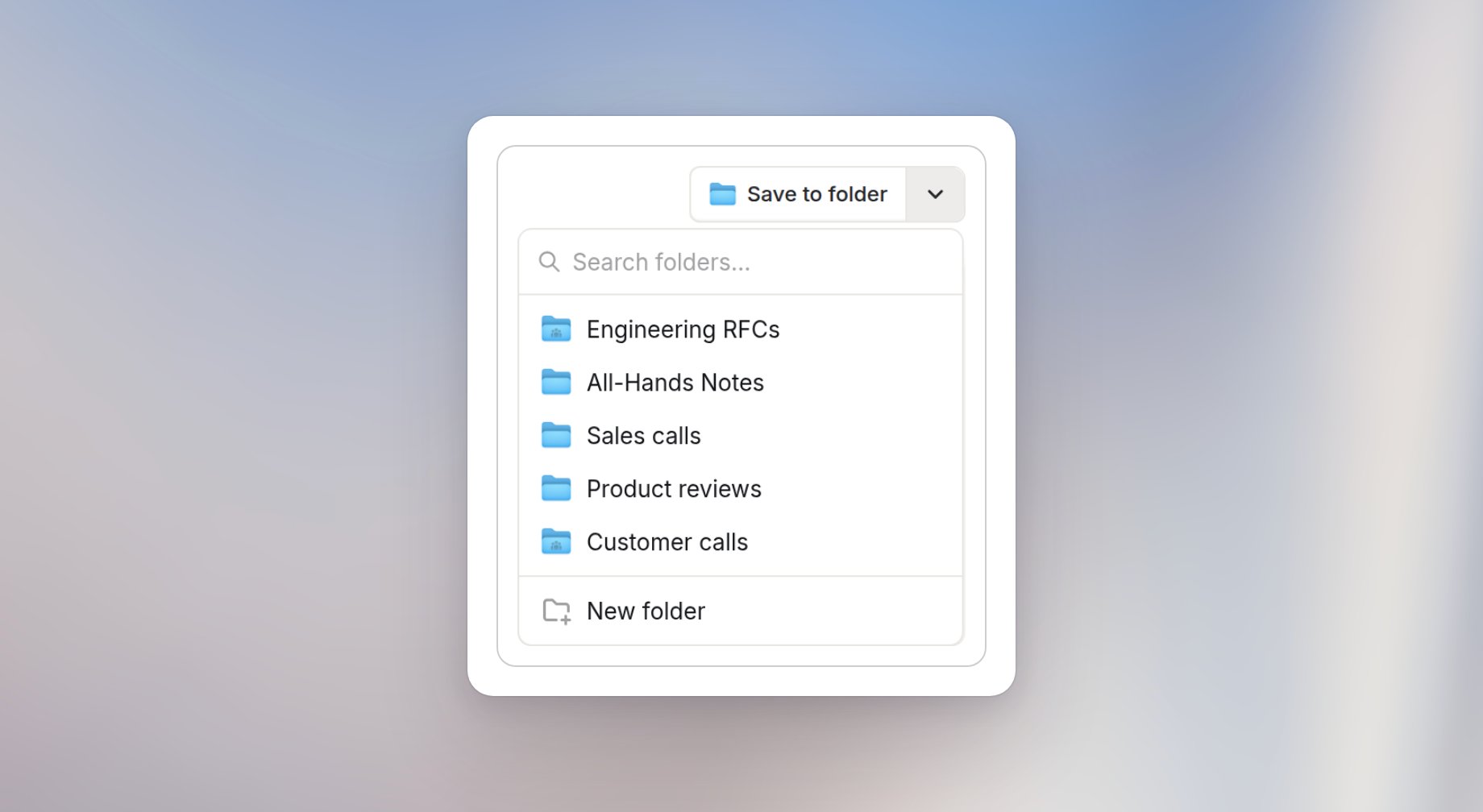
Preferences
Open the add-in menu in the top bar and select Preferences to customize the add-in:- Presentation template: Change or clear the template new slides use. Without a template, new slides use Langdock’s own styles.
- Instructions: Add custom instructions that apply only to chats in the PowerPoint add-in, for example
Use sentence case for slide titles. - Default model: New add-in chats start on Auto mode. After you pick another model, Reset takes you back to Auto mode.