

The Workflow Builder lets you design and automate processes through a conversational AI interface. You can describe what you want to achieve in natural language, and the system will generate a complete workflow. Test, refine, and deploy!Documentation Index
Fetch the complete documentation index at: https://docs.langdock.com/llms.txt
Use this file to discover all available pages before exploring further.
Creating Workflows Through Chat
Instead of manually connecting nodes on a canvas, the Workflow Builder lets you describe your automation goal in natural language. It interprets your description and generates the appropriate workflow structure.Starting a New Workflow Chat
- Navigate to the Workflows section using the navigation bar and create a new workflow
- In the bottom left corner, you’ll find a button that opens the Workflow Builder chat
- A chat window will open, and you can begin describing the workflow you want to build!
Build an automation that runs every Monday to pull sales reports from Salesforce and generates a summary
Create a workflow that monitors Gmail for emails from customers, uses AI to detect if it’s a feature request, and automatically labels it as such
Set up a workflow triggered by a form submission that validates the data and adds it to a Google SheetThe model will generate a complete workflow inferring all necessary nodes, connections, and basic configurations. Start simple and build up complexity as you go.
Reviewing Your Generated Workflow
The Workflow Builder gives you a solid starting point, but you’ll want to review and potentially adjust the generated workflow before deploying it. Here’s what to check:- Node connections: Verify that each node is connected correctly and data flows as expected
- Input configurations: Check that variables point to the right data
- Integration settings: Connect your accounts and configure authentication for any integrations used
- Agent instructions: Review and refine the prompts for any AI agent nodes to match your specific needs
- Error handling: Add fallback paths or notifications for critical steps
Iterating with the Model
After the initial generation, you can refine your workflow by chatting with the Workflow Builder. You can adjust triggers, modify logic, add integrations, or improve error handling. The model keeps the full context of your discussion, making it easy to evolve your workflow step by step into a more precise and powerful automation.Fixing Errors in Chat
If your workflow runs into an error during execution, you don’t necessarily have to debug it manually. Selecting the “Fix in chat” button will open the Workflow Builder Chat with the error details automatically inserted. It then analyzes the issue and suggests a fix, or applies it directly if it can. This makes troubleshooting faster and helps you get your workflow back on track without digging through logs yourself.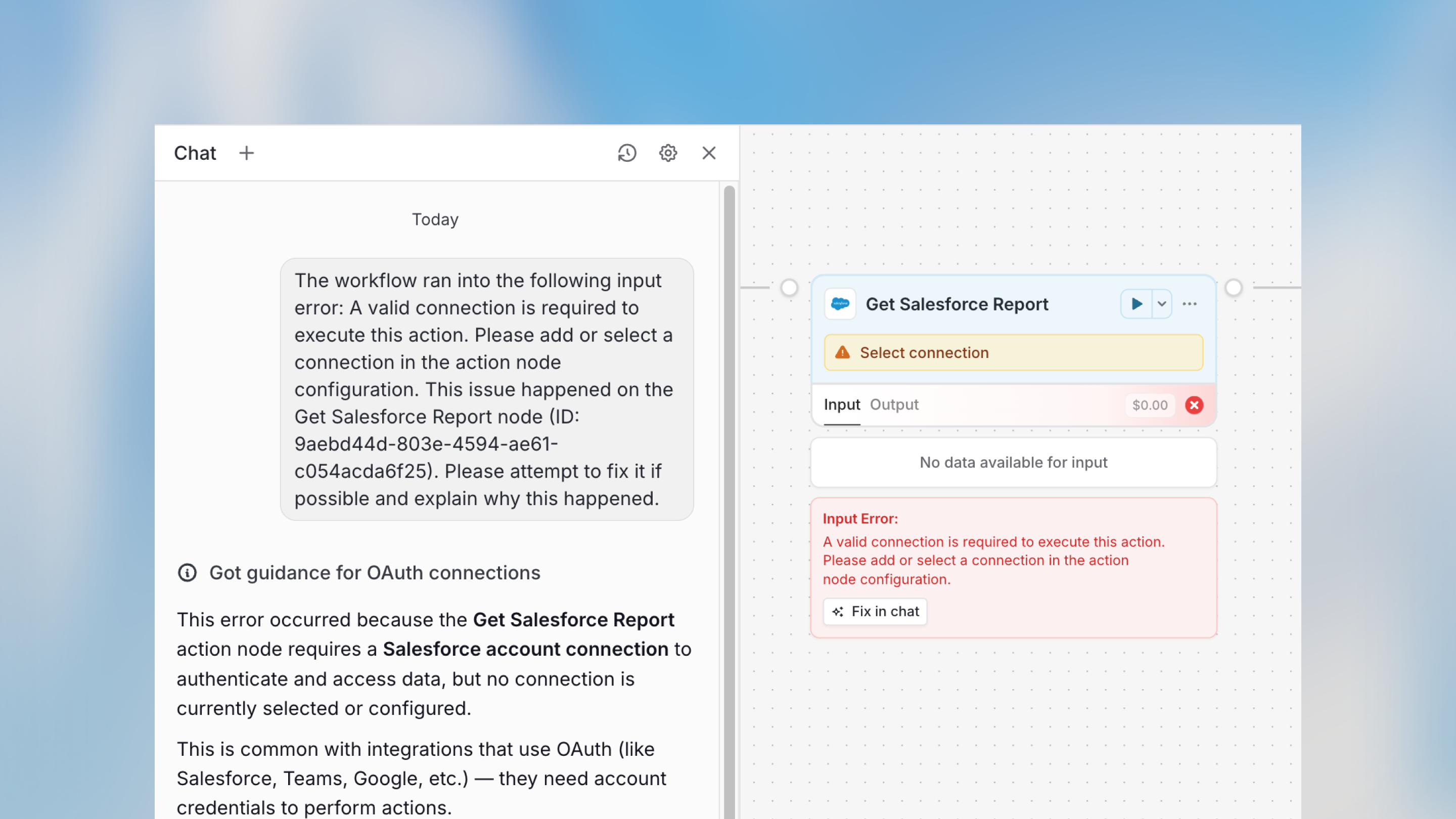
Set Preferences in the Workflow Builder
You can customize how the Workflow Builder creates workflows by selecting your preferred tools, such as your chosen email, CRM, or issue tracking platforms. The model will remember your selections and adjust its behavior to align with your preferences. You may also provide custom instructions to further refine how the AI supports you throughout the workflow creation process.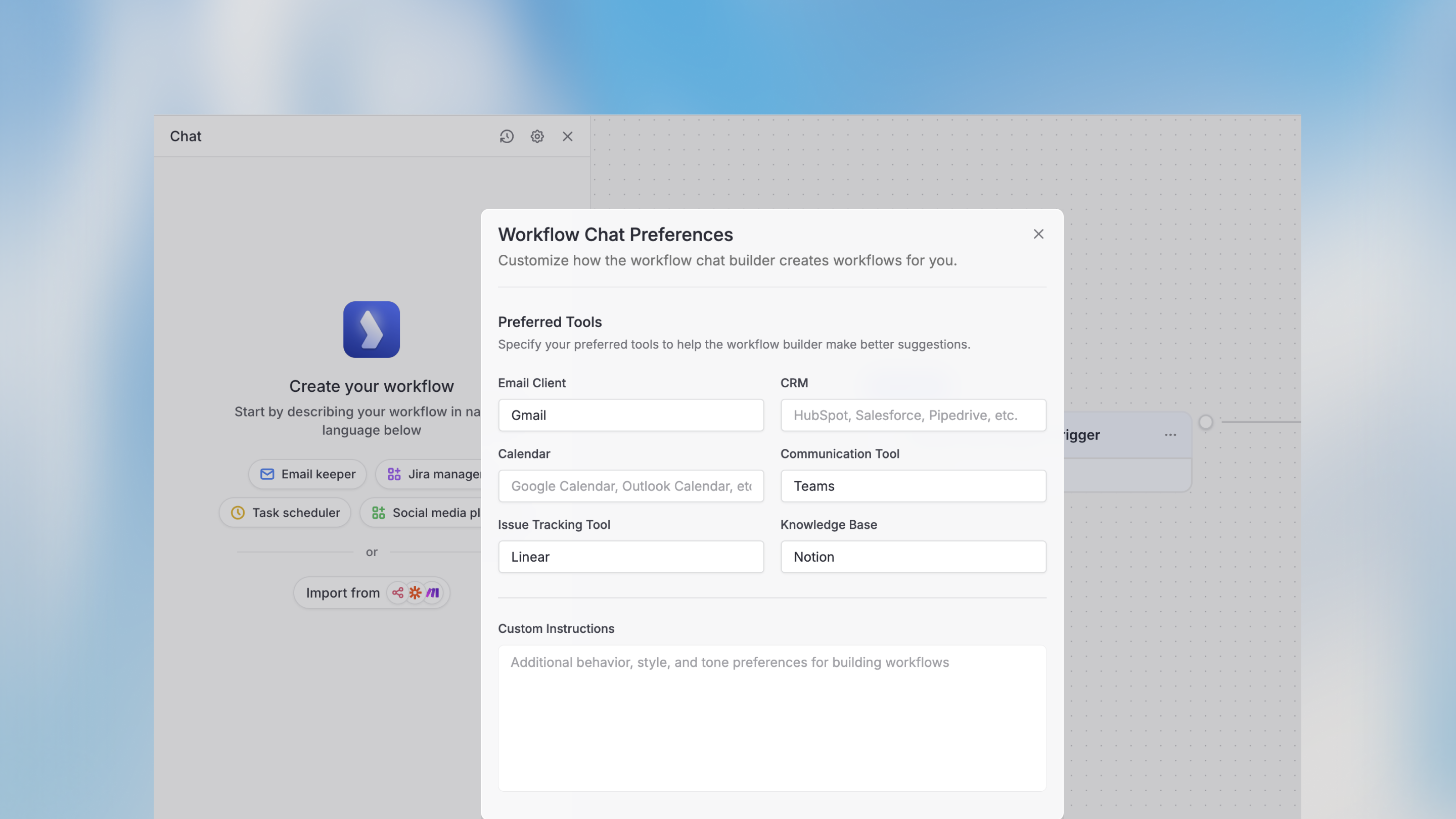
Viewing Chat History
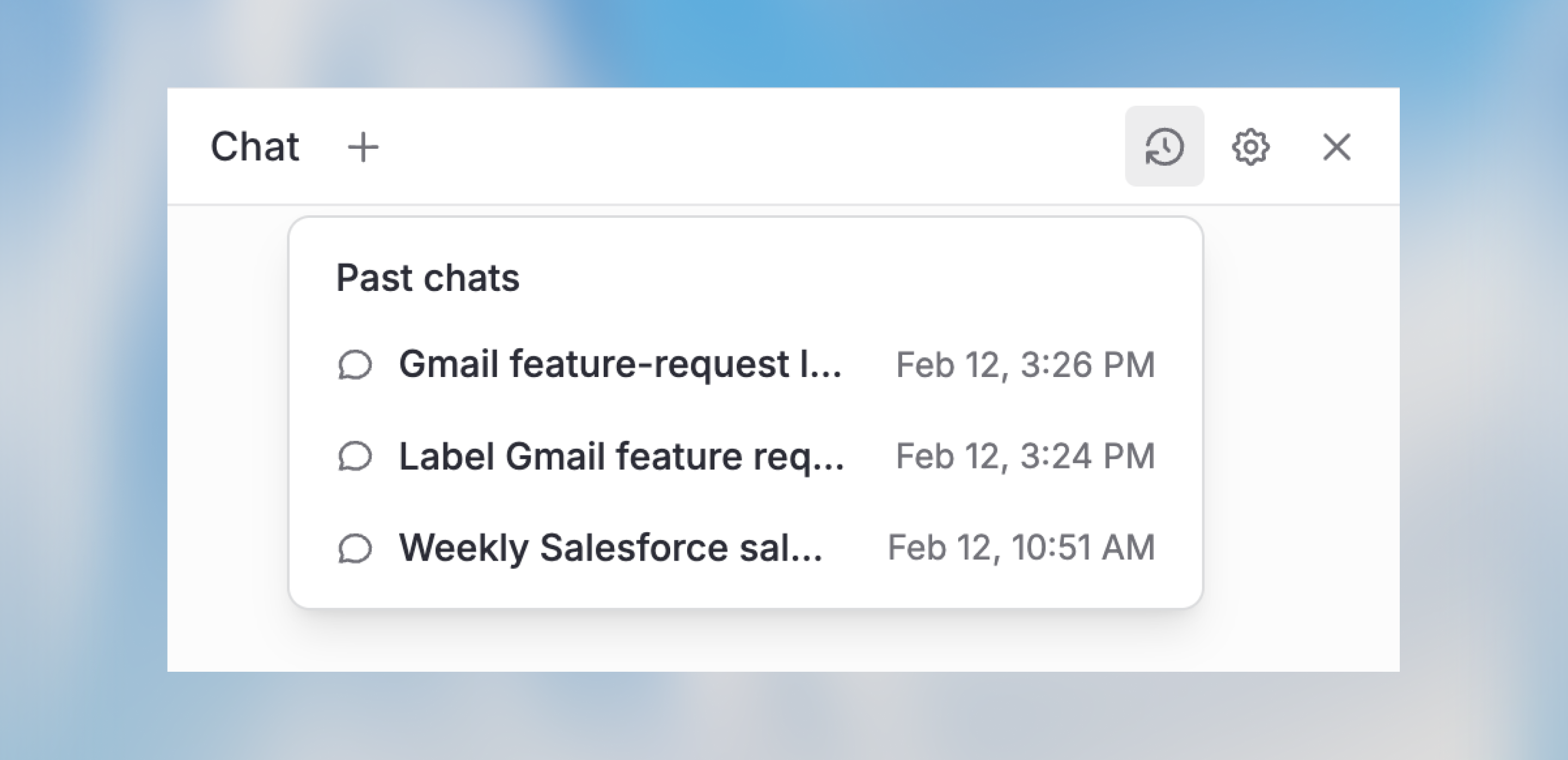
You can revisit previous conversations using the chat history feature, ensuring that no context is lost as you iterate on your workflow.- Open the Workflow Builder
- Click the Chat History icon in the top-right corner
- Select the chat you want to review and continue the conversation right where you left off
Importing Workflows from Other Tools
You can easily recreate workflows from other tools by exporting them in JSON format and importing the files directly into the Langdock chat. The Workflow Builder will interpret the structure and create a corresponding workflow for you.Next Steps
Core Concepts
Understand the building blocks of workflows
Field Modes
Learn about static values and dynamic variables
Variable Usage
Reference data between nodes
Cost Management
Monitor and control workflow spending