

Documentation Index
Fetch the complete documentation index at: https://docs.langdock.com/llms.txt
Use this file to discover all available pages before exploring further.
An admin needs to create the API key and share the folder with the API key. Invite an admin as an editor to your folder with the “Share” button in the top right corner (skip this step if you are a Langdock admin yourself).
How to create an API key
-
Navigate to Langdock

-
Navigate to the workspace settings.

-
Click on “API” under products.

-
Create a new API key.

-
Enter a name and click “Create API key”

-
Copy your API Key to the clipboard.
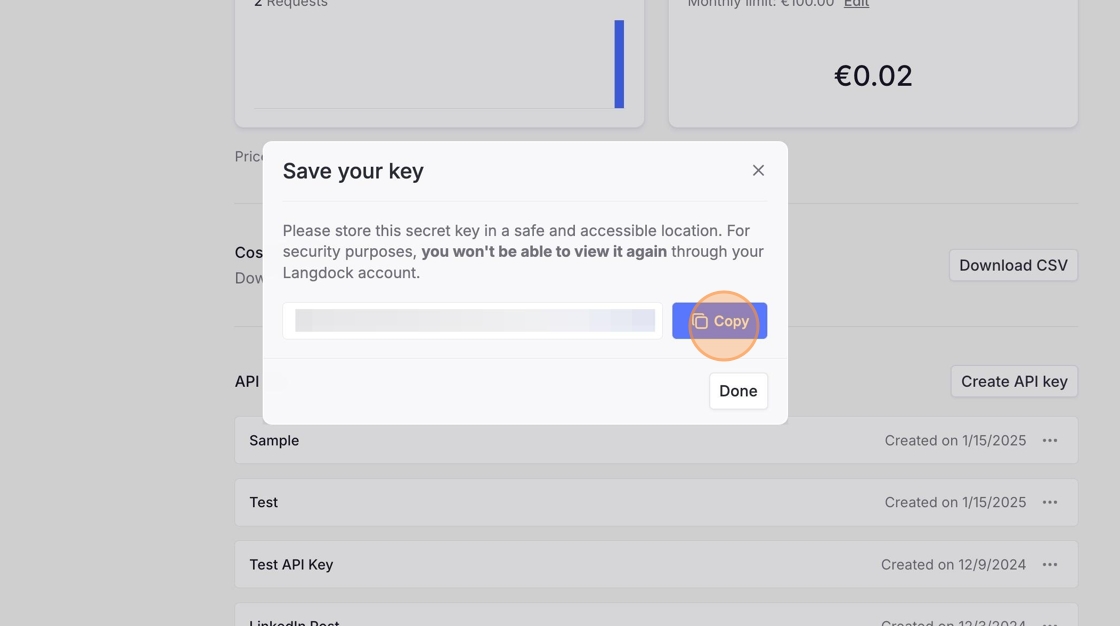
-
Click “Done”
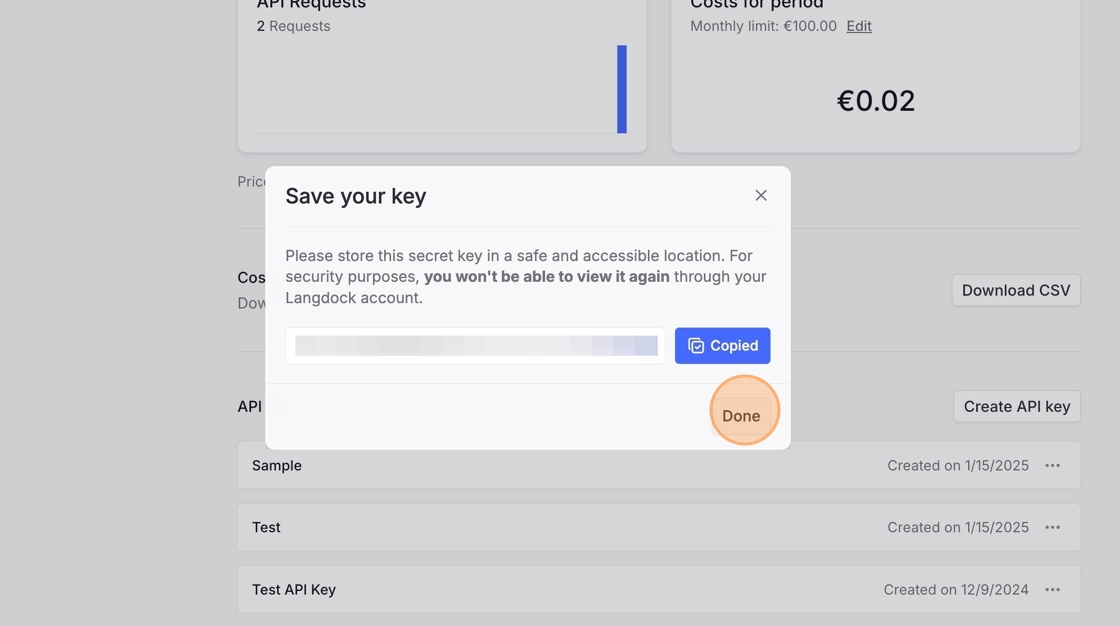
-
Leave the settings by clicking on “Settings” on the top left.

How to share a folder with the API
- Open the Library from the left sidebar, or go to Settings → Workspace → Library to manage folders from the admin view.
- Open the folder you want to share with the API.
- Click Share.
Steps 4 to 6 are only needed if you are not a Langdock admin. If you are a Langdock admin, you can jump to step 7.
- Click the Add people and groups field.
- Type the name of an admin and select them in the dropdown.
- Select Editor to give them Editor permissions for this folder, then click Share.
- Ask the admin to open the folder’s Share dialog.
- In the Add people and groups field, search for the API key and select it.
- Select the API access role. Choose User for search access or Editor for upload and management access.
- Click Share.
Langdock intentionally blocks browser-origin requests to protect your API key and ensure your applications remain secure. For more information, please see our guide on API Key Best Practices.