> ## Documentation Index
> Fetch the complete documentation index at: https://docs.langdock.com/llms.txt
> Use this file to discover all available pages before exploring further.
# Excel Plugin
> With the Excel plugin you can work with Langdock without leaving your Excel workbook.
The Excel plugin brings Langdock into Microsoft Excel, so your spreadsheets and AI assistance stay side by side. Use it to understand workbooks faster, create formulas, clean up data, and turn spreadsheet findings into clear summaries without switching tools. You can ask questions while looking at your workbook, iterate on outputs directly in Excel, and keep your analysis in the place where the work is happening.
## Working with Langdock in Excel
The Excel plugin is useful whenever the work starts in a spreadsheet. Instead of copying data into a separate chat, you can keep Excel open and use Langdock alongside it.
### Common use cases
* **Build tables and plans**: Ask Langdock to create budget plans, project trackers, comparison tables, reporting templates, or charts directly in your workbook.
* **Create calculations**: Describe the calculation you need and let Langdock add formulas, totals, percentages, or growth rates.
* **Clean and structure data**: Standardize names, dates, categories, currencies, or messy rows before you analyze them.
* **Analyze spreadsheet results**: Ask Langdock to find trends, outliers, changes, and key takeaways in your data.
* **Research and enrichment**: Use Langdock to research companies, markets, or topics and add useful context to your spreadsheet.
* **Prepare summaries**: Turn spreadsheet findings into updates for reports, emails, presentations, or team meetings.
### Example: Build a quarterly budget plan
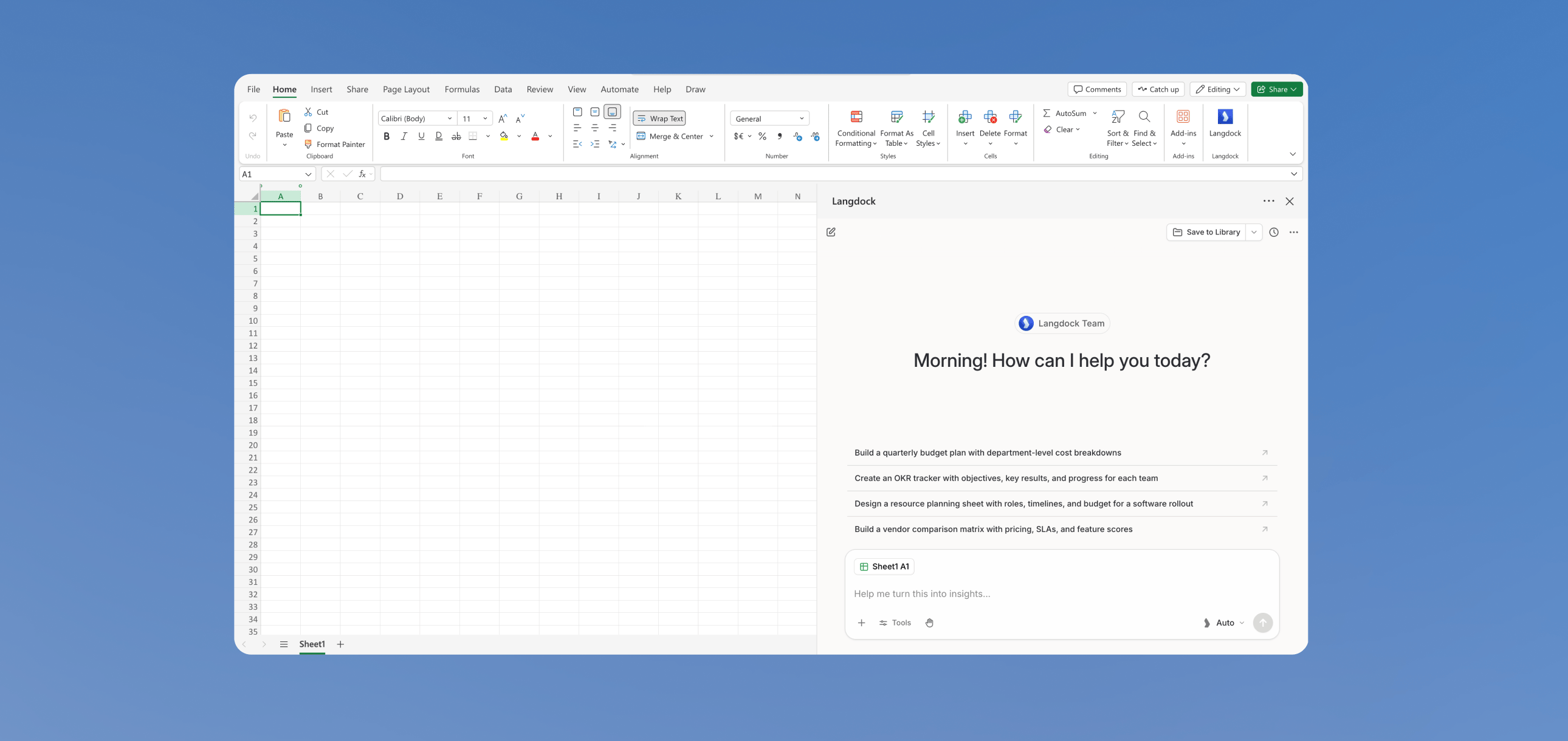
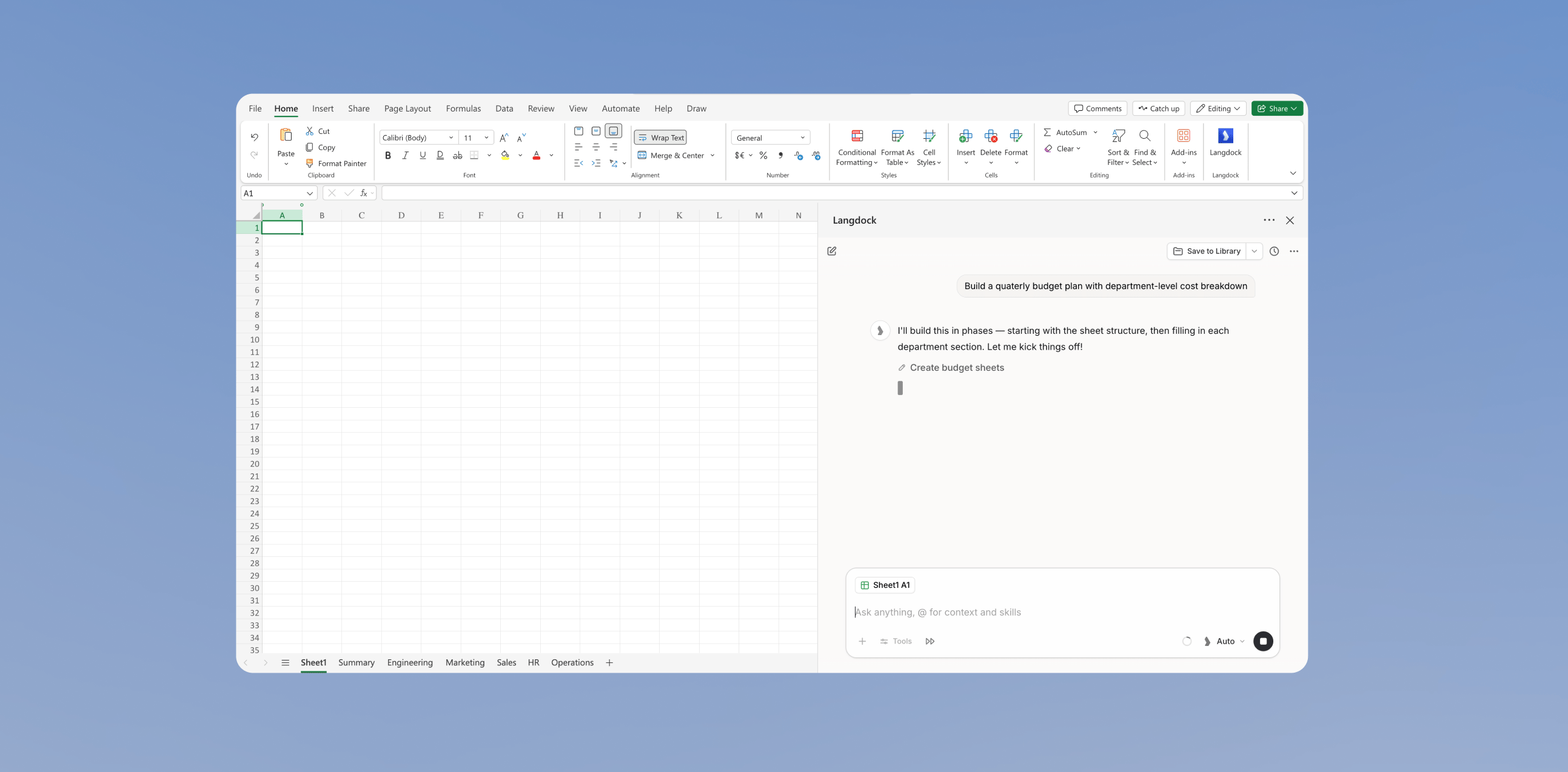
Say you need to create a quarterly budget plan with department-level cost breakdowns. Open the Langdock Add-in next to your workbook and describe what you want to build.
Ask Langdock for the spreadsheet you need:
`Build a quarterly budget plan with department-level cost breakdowns`
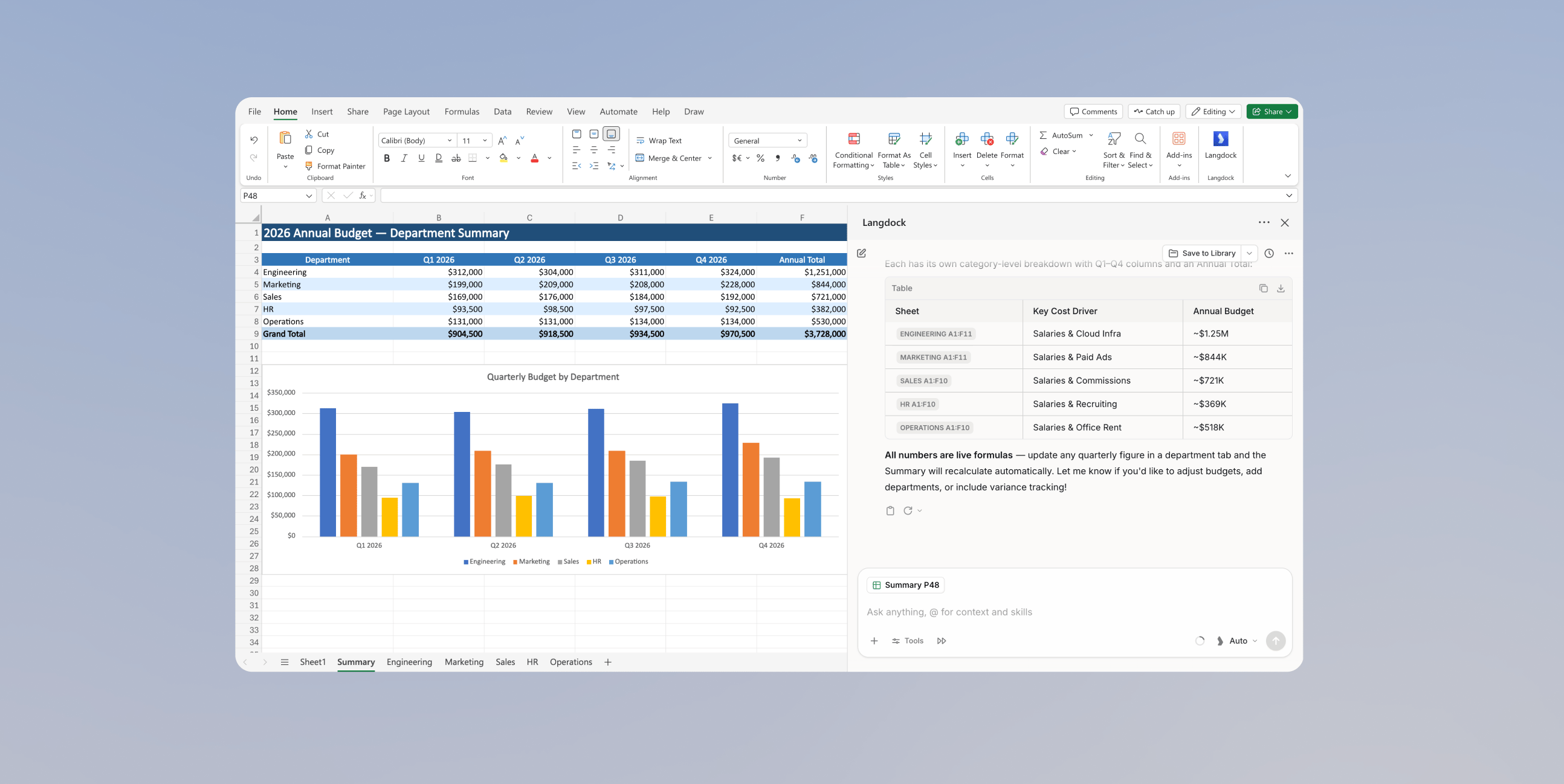
Langdock creates the table in your workbook and keeps the conversation open next to it. From there, you can ask follow-up questions, analyze the table, perform calculations, or use connected integrations without leaving Excel.
### Jump to cited cells
When Langdock references cells in a reply, the reference appears as a clickable pill, for example **Sheet1 B3:B8**. Click the pill to open the referenced sheet and select the range in your workbook. If the sheet has since been renamed or removed, Langdock shows a short notice instead.
### Import an uploaded spreadsheet
Attach a spreadsheet to the chat and ask Langdock to open, import, insert, or edit it in Excel, for example `Import this spreadsheet into my workbook`. Langdock copies the attached workbook's sheets into the workbook you have open so you can review and edit them in place. Without an explicit request, the attachment stays a read-only data source and your workbook stays unchanged. Importing never modifies the uploaded file or its source in OneDrive, SharePoint, or Google Drive.
### Next steps
After Langdock creates the first output, you can keep working from the same panel:
* Ask follow-up questions about the sheet
* Add calculations, totals, or comparisons
* Enrich the spreadsheet with results from a [Web Search](/en/using-langdock/chat/tools/web-search)
* Draft an email by using [Actions in Chat](/en/using-langdock/chat/tools/actions-in-chat) and selecting your email provider from your connected [integrations](/en/using-langdock/integrations/introduction)
## Edit permissions
Langdock asks before changing your workbook by default. Switch modes from the **Edit permissions** menu in the chat input:
* **Ask before edits**: Langdock shows a confirmation with the action, target range, and cell count before each write. Choose **Allow once**, **Always allow**, or **Deny**.
* **Accept all edits**: Langdock applies edits without asking.
In both modes, Langdock never overwrites populated cells unless the request is explicitly a replacement. Otherwise it proposes a different range or asks you to confirm. Formulas that fetch external data or open links are always rejected.
## Save to Library
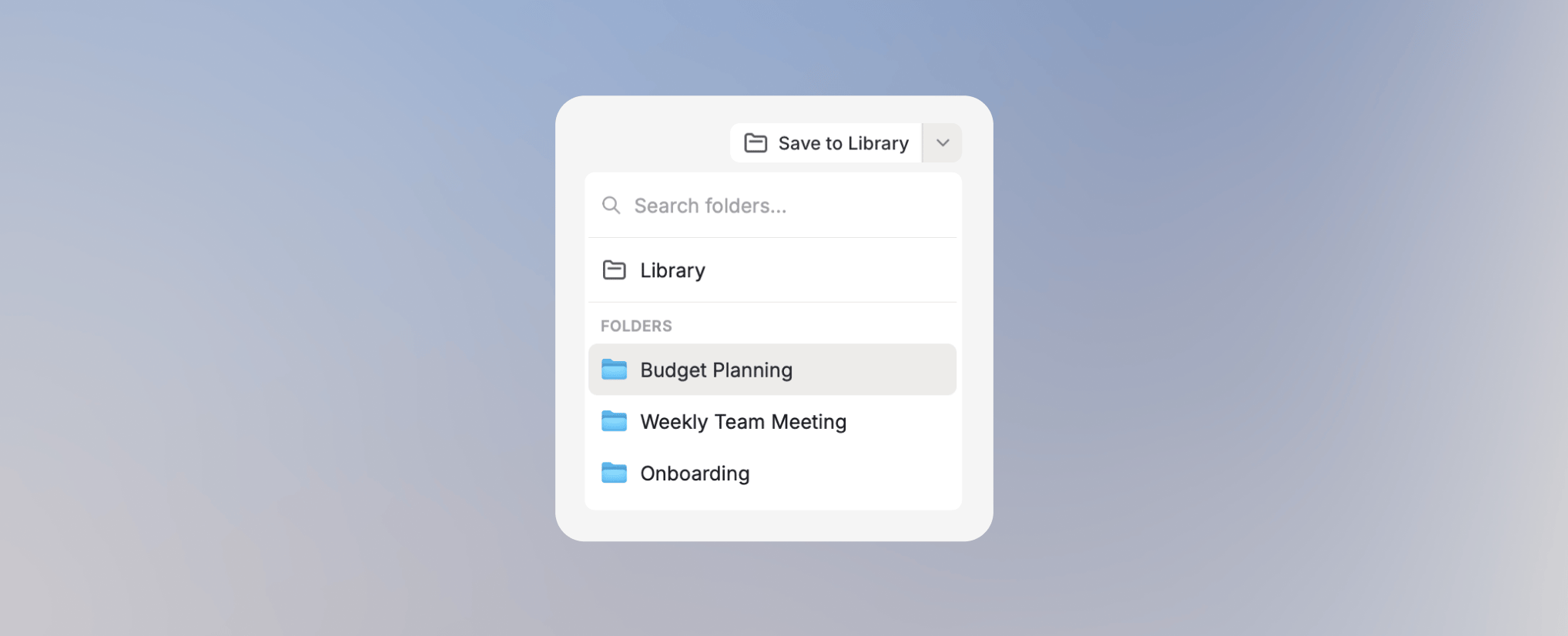
You can save files from the Excel plugin directly to your Langdock Library, making them accessible to your Workspace and team. Save to the Library root or choose a specific [Folder](/en/using-langdock/library/folders) to organize files for everyone with access.
## Preferences
Open the plugin menu in the top bar and select **Preferences** to customize the plugin. In the **Instructions** field, add custom instructions that apply only to chats in the Excel plugin, for example `Round decimals to two places`. Below that, choose a **Default model** that is preselected whenever you start a new plugin chat. Both are independent of your global [account settings](/en/using-langdock/account/account). You can also switch the theme and delete all plugin conversations here.
## How to install Langdock for Excel
Install the Langdock Add-in from the Microsoft Marketplace and connect it to your Langdock account.
Navigate to the [Langdock for Excel](https://marketplace.microsoft.com/en-us/product/office/WA200011245?tab=Overview) page on the Microsoft Marketplace.
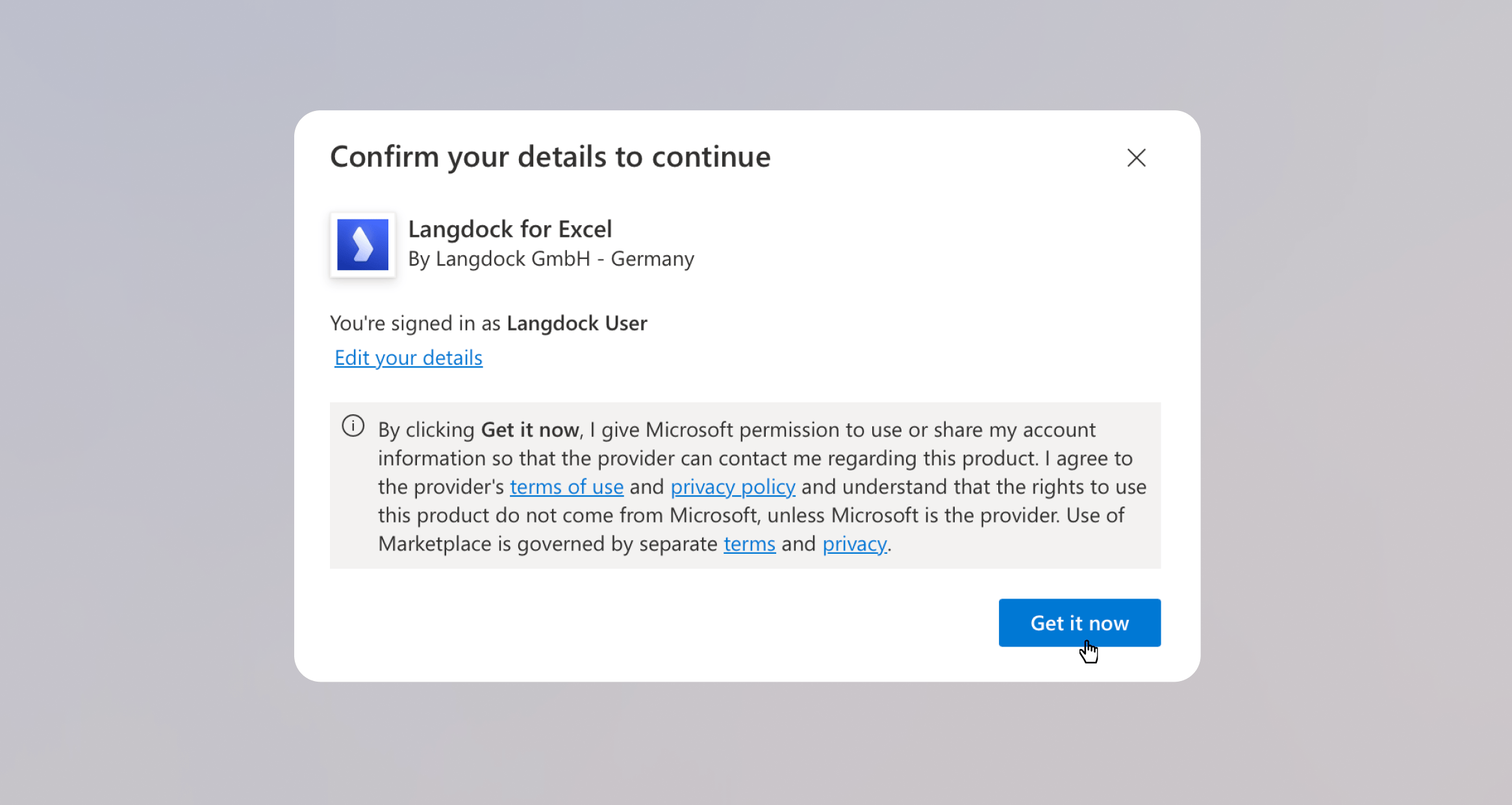
Click **Get it now** and confirm your details in the dialog that appears.
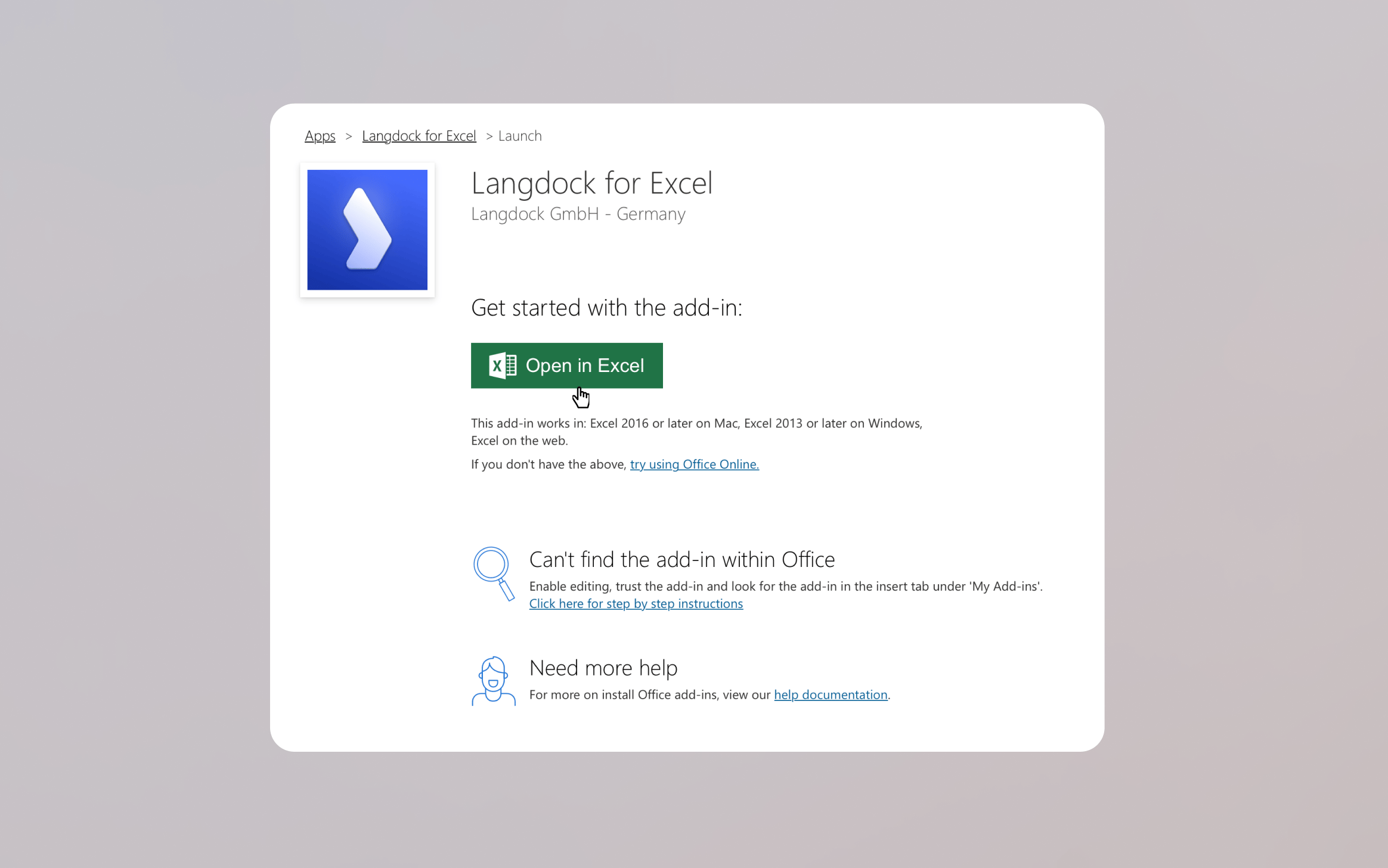
Click **Open in Excel** to launch the Add-in directly in your workbook.
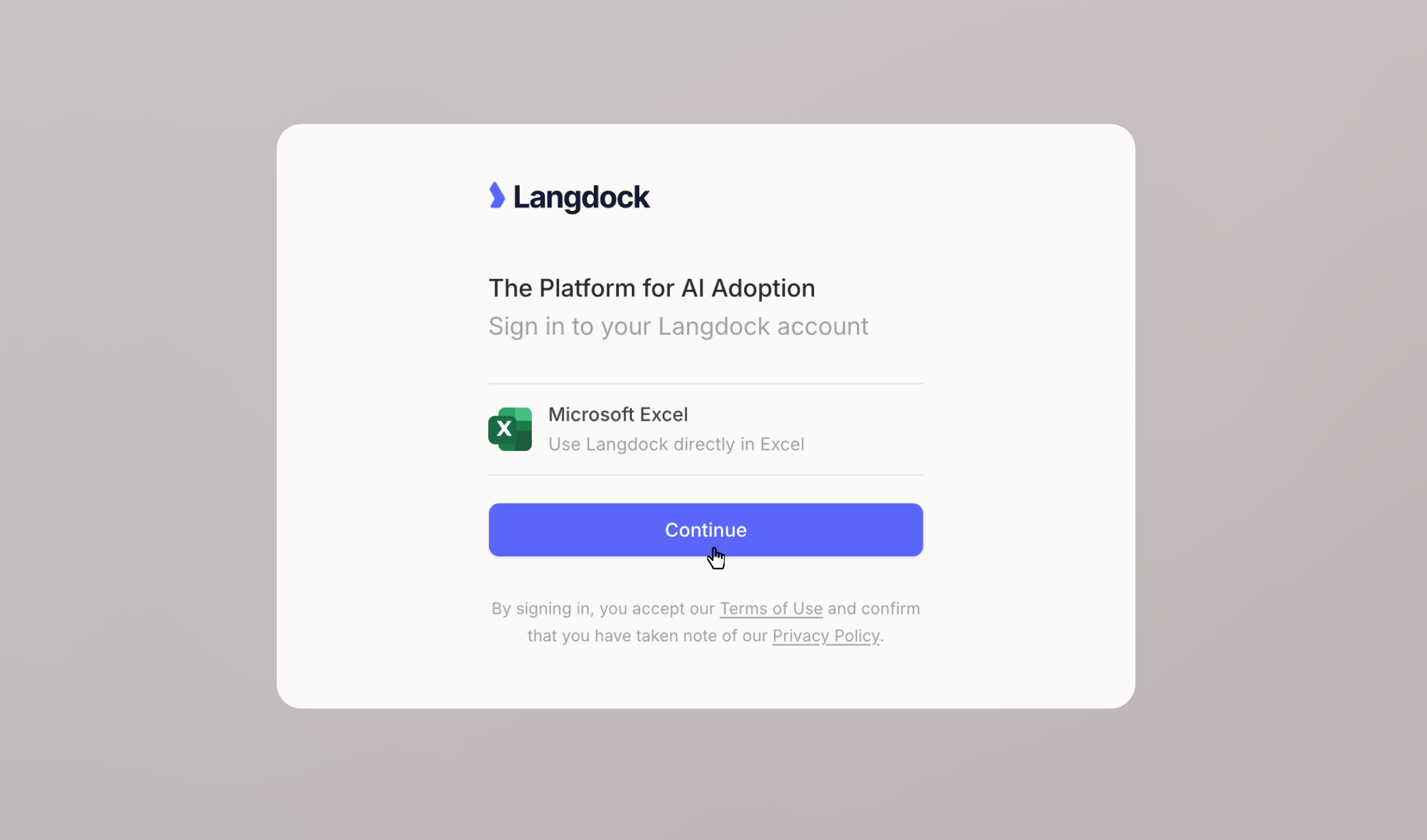
Follow the sign-in flow to connect the Add-in to your Langdock account. Click **Continue** to log in.
You can now use Langdock while your workbook stays open. Start with a specific question about what you want to understand, calculate, clean up, or explain.
## How to enable the Excel plugin
Before users can sign in to the Excel plugin, an admin needs to enable it in the workspace integration settings. Once enabled, users in the workspace can open the Langdock Add-in in Excel and connect their account. For the full setup walkthrough, see the [Plugin Setup Guide](/en/admin/manage-integrations/plugin-setup-guides/excel-plugin).

 ### Common use cases
* **Build tables and plans**: Ask Langdock to create budget plans, project trackers, comparison tables, reporting templates, or charts directly in your workbook.
* **Create calculations**: Describe the calculation you need and let Langdock add formulas, totals, percentages, or growth rates.
* **Clean and structure data**: Standardize names, dates, categories, currencies, or messy rows before you analyze them.
* **Analyze spreadsheet results**: Ask Langdock to find trends, outliers, changes, and key takeaways in your data.
* **Research and enrichment**: Use Langdock to research companies, markets, or topics and add useful context to your spreadsheet.
* **Prepare summaries**: Turn spreadsheet findings into updates for reports, emails, presentations, or team meetings.
### Example: Build a quarterly budget plan
Say you need to create a quarterly budget plan with department-level cost breakdowns. Open the Langdock Add-in next to your workbook and describe what you want to build.
### Common use cases
* **Build tables and plans**: Ask Langdock to create budget plans, project trackers, comparison tables, reporting templates, or charts directly in your workbook.
* **Create calculations**: Describe the calculation you need and let Langdock add formulas, totals, percentages, or growth rates.
* **Clean and structure data**: Standardize names, dates, categories, currencies, or messy rows before you analyze them.
* **Analyze spreadsheet results**: Ask Langdock to find trends, outliers, changes, and key takeaways in your data.
* **Research and enrichment**: Use Langdock to research companies, markets, or topics and add useful context to your spreadsheet.
* **Prepare summaries**: Turn spreadsheet findings into updates for reports, emails, presentations, or team meetings.
### Example: Build a quarterly budget plan
Say you need to create a quarterly budget plan with department-level cost breakdowns. Open the Langdock Add-in next to your workbook and describe what you want to build.
 Ask Langdock for the spreadsheet you need:
`Build a quarterly budget plan with department-level cost breakdowns`
Ask Langdock for the spreadsheet you need:
`Build a quarterly budget plan with department-level cost breakdowns`
 Langdock creates the table in your workbook and keeps the conversation open next to it. From there, you can ask follow-up questions, analyze the table, perform calculations, or use connected integrations without leaving Excel.
 ### Jump to cited cells
When Langdock references cells in a reply, the reference appears as a clickable pill, for example **Sheet1 B3:B8**. Click the pill to open the referenced sheet and select the range in your workbook. If the sheet has since been renamed or removed, Langdock shows a short notice instead.
### Import an uploaded spreadsheet
Attach a spreadsheet to the chat and ask Langdock to open, import, insert, or edit it in Excel, for example `Import this spreadsheet into my workbook`. Langdock copies the attached workbook's sheets into the workbook you have open so you can review and edit them in place. Without an explicit request, the attachment stays a read-only data source and your workbook stays unchanged. Importing never modifies the uploaded file or its source in OneDrive, SharePoint, or Google Drive.
### Next steps
After Langdock creates the first output, you can keep working from the same panel:
* Ask follow-up questions about the sheet
* Add calculations, totals, or comparisons
* Enrich the spreadsheet with results from a [Web Search](/en/using-langdock/chat/tools/web-search)
* Draft an email by using [Actions in Chat](/en/using-langdock/chat/tools/actions-in-chat) and selecting your email provider from your connected [integrations](/en/using-langdock/integrations/introduction)
## Edit permissions
Langdock asks before changing your workbook by default. Switch modes from the **Edit permissions** menu in the chat input:
* **Ask before edits**: Langdock shows a confirmation with the action, target range, and cell count before each write. Choose **Allow once**, **Always allow**, or **Deny**.
* **Accept all edits**: Langdock applies edits without asking.
In both modes, Langdock never overwrites populated cells unless the request is explicitly a replacement. Otherwise it proposes a different range or asks you to confirm. Formulas that fetch external data or open links are always rejected.
## Save to Library
You can save files from the Excel plugin directly to your Langdock Library, making them accessible to your Workspace and team. Save to the Library root or choose a specific [Folder](/en/using-langdock/library/folders) to organize files for everyone with access.
### Jump to cited cells
When Langdock references cells in a reply, the reference appears as a clickable pill, for example **Sheet1 B3:B8**. Click the pill to open the referenced sheet and select the range in your workbook. If the sheet has since been renamed or removed, Langdock shows a short notice instead.
### Import an uploaded spreadsheet
Attach a spreadsheet to the chat and ask Langdock to open, import, insert, or edit it in Excel, for example `Import this spreadsheet into my workbook`. Langdock copies the attached workbook's sheets into the workbook you have open so you can review and edit them in place. Without an explicit request, the attachment stays a read-only data source and your workbook stays unchanged. Importing never modifies the uploaded file or its source in OneDrive, SharePoint, or Google Drive.
### Next steps
After Langdock creates the first output, you can keep working from the same panel:
* Ask follow-up questions about the sheet
* Add calculations, totals, or comparisons
* Enrich the spreadsheet with results from a [Web Search](/en/using-langdock/chat/tools/web-search)
* Draft an email by using [Actions in Chat](/en/using-langdock/chat/tools/actions-in-chat) and selecting your email provider from your connected [integrations](/en/using-langdock/integrations/introduction)
## Edit permissions
Langdock asks before changing your workbook by default. Switch modes from the **Edit permissions** menu in the chat input:
* **Ask before edits**: Langdock shows a confirmation with the action, target range, and cell count before each write. Choose **Allow once**, **Always allow**, or **Deny**.
* **Accept all edits**: Langdock applies edits without asking.
In both modes, Langdock never overwrites populated cells unless the request is explicitly a replacement. Otherwise it proposes a different range or asks you to confirm. Formulas that fetch external data or open links are always rejected.
## Save to Library
You can save files from the Excel plugin directly to your Langdock Library, making them accessible to your Workspace and team. Save to the Library root or choose a specific [Folder](/en/using-langdock/library/folders) to organize files for everyone with access.
 ## Preferences
Open the plugin menu in the top bar and select **Preferences** to customize the plugin. In the **Instructions** field, add custom instructions that apply only to chats in the Excel plugin, for example `Round decimals to two places`. Below that, choose a **Default model** that is preselected whenever you start a new plugin chat. Both are independent of your global [account settings](/en/using-langdock/account/account). You can also switch the theme and delete all plugin conversations here.
## How to install Langdock for Excel
Install the Langdock Add-in from the Microsoft Marketplace and connect it to your Langdock account.
## Preferences
Open the plugin menu in the top bar and select **Preferences** to customize the plugin. In the **Instructions** field, add custom instructions that apply only to chats in the Excel plugin, for example `Round decimals to two places`. Below that, choose a **Default model** that is preselected whenever you start a new plugin chat. Both are independent of your global [account settings](/en/using-langdock/account/account). You can also switch the theme and delete all plugin conversations here.
## How to install Langdock for Excel
Install the Langdock Add-in from the Microsoft Marketplace and connect it to your Langdock account.